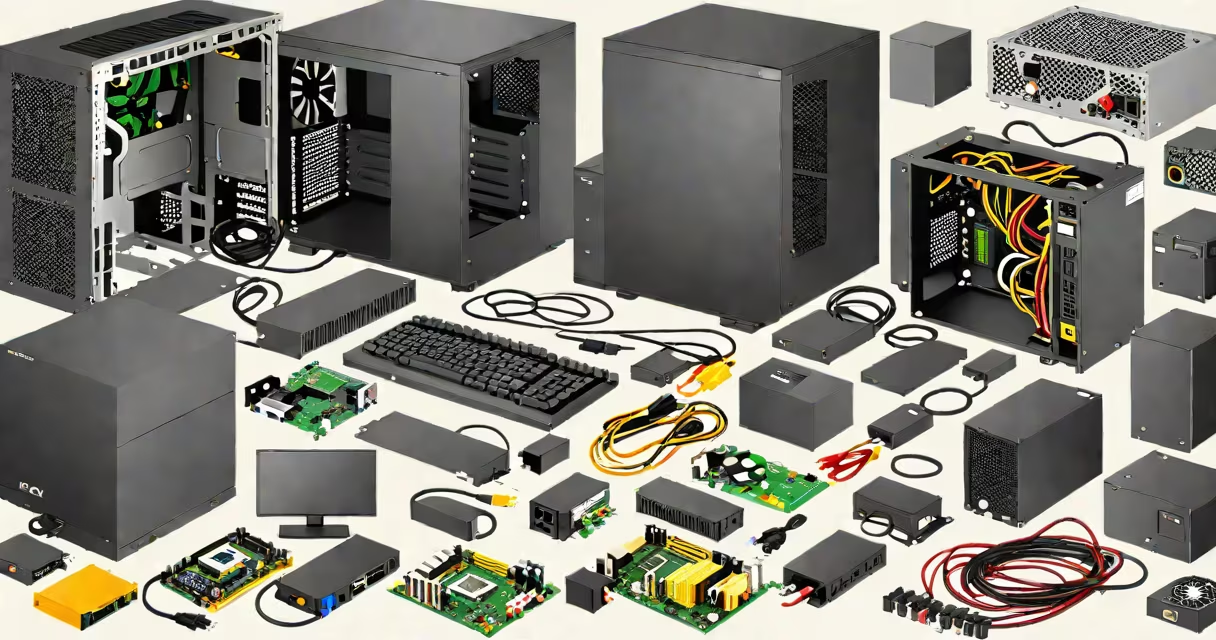
The things required to build a PC are a compatible motherboard, central processing unit (CPU), memory (RAM), storage drive, power supply unit (PSU), and a computer case. These components form the foundation of a functional desktop system capable of running operating systems and applications.
Each part must match in specifications to ensure proper function. For example, the CPU must fit the motherboard's socket type, and the PSU must deliver enough wattage for all components under load. Failure to align these elements results in a non-functional build.
Without all core components, the system cannot boot. A missing or incompatible part prevents power delivery, signal routing, or data access. This is not a flexible checklist-it's a technical requirement set.
The motherboard acts as the central hub. It connects the CPU, RAM, storage, and peripherals via buses and expansion slots. Without it, components have no communication path. Intel and AMD CPUs require different socket types-LGA 1700 for Intel 12th-14th Gen, AM5 for AMD Ryzen 7000 series. Mismatched sockets prevent installation.
The CPU executes instructions. A modern 6-core AMD Ryzen 7 7700X runs at 4.5 GHz base clock and handles multitasking, gaming, and content creation. Overclocking requires a motherboard with a Z-series chipset (e.g., B650, Z790) and a CPU that supports it.
RAM stores active data. 16 GB DDR5-5600MHz is standard for gaming and productivity. Using 3200MHz RAM in a DDR5 system limits performance due to timing and voltage mismatches. Motherboard manuals specify supported speeds and dual-channel configurations.
Storage options differ in speed and capacity. SATA SSDs offer 500-600 MB/s read speeds and cost $0.20/GB. NVMe PCIe 4.0 drives like the Samsung 980 Pro reach 7,000 MB/s and cost $0.45/GB. For a 1TB OS and game install, NVMe reduces load times by 60% compared to SATA.
Power supplies come in 80 Plus ratings: Bronze (85% efficiency), Gold (90%), Platinum (92%). A 750W 80 Plus Gold PSU delivers stable voltage under load. A 500W unit fails during GPU-intensive tasks like video rendering.
| Component | Minimum Requirement | Recommended Upgrade | Why It Matters |
|---|---|---|---|
| CPU | Intel i3-12100 or AMD Ryzen 3 3300X | Intel i7-13700K or AMD Ryzen 7 7700X | Higher cores improve multitasking and encoding speed. |
| GPU | NVIDIA GTX 1650 or AMD Radeon RX 6400 | NVIDIA RTX 4070 or AMD RX 7800 XT | Modern games demand 1080p 60fps with ray tracing. |
| RAM | 16 GB DDR4/DDR5 | 32 GB DDR5-6000MHz | Reduces stuttering in large applications and virtual machines. |
Desktops use these components because they allow customization, repairability, and performance scaling. A workstation with dual GPUs and ECC RAM serves machine learning tasks. A gaming rig uses high-refresh-rate monitors and liquid cooling.
Using a prebuilt system limits upgrade paths. A Dell OptiPlex with soldered RAM cannot accept new modules. A custom build allows replacing the GPU every 3 years without changing the motherboard.
For example, a user in Texas built a PC using an AMD Ryzen 5 5600X, 32 GB G.Skill Ripjaws V DDR4-3200, and a WD Black SN850 NVMe SSD. The system booted in under 15 seconds and ran Blender at 30 frames per second with 4K render output. This configuration cost $1,100 and met the user's needs for video editing and streaming.
Many assume any power supply works with any case. But PSUs have standardized 8-pin connectors and modular cables. A 750W PSU with a 24-pin ATX connector fits most cases-but not all. Some mini-ITX cases require SFX-sized PSUs.
Another myth: "More watts mean better performance." A 1,000W PSU doesn't boost frame rates. It only ensures stable power delivery. A 650W 80 Plus Gold unit suffices for an RTX 4060 Ti. Oversizing wastes money and increases idle power draw.
A key distinction: "I can use any RAM." No. Mixing DDR4 and DDR5 in the same system causes failure to boot. Motherboards support only one type. Dual-channel mode requires matching pairs. Installing two 8 GB sticks of DDR4-3200MHz improves bandwidth by 35% over single-channel.
I assembled my first PC in 2019 using a used ASUS ROG Strix B450-F Gaming motherboard, an AMD Ryzen 5 2600, 16 GB of Kingston HyperX Fury RAM, and a 500 GB WD Blue SSD. The system failed to boot after installing the RAM. After checking the manual, I realized the RAM was installed in the wrong DIMM slots. Slot A2 and B2 are correct for dual-channel. Replacing the RAM in those slots resolved the issue.
This mistake cost me 45 minutes of troubleshooting. It taught me that even experienced builders check pinouts and alignment guides. Always verify component placement before powering on.
Before connecting power:
After confirming all connections, press the power button. If the system doesn't respond, test the power button wire on the motherboard's front panel header. A multimeter can verify voltage delivery.
Once the system boots, enter the BIOS to confirm detection of all components. Set the boot order to the SSD. Install Windows 11 from a USB drive using the Media Creation Tool. Update drivers through manufacturer websites.
Understanding the things required to build a PC ensures reliability and long-term usability. Skipping any component or misaligning specs leads to instability, crashes, or permanent damage. Follow verified compatibility charts from CPU Benchmark and Tom's Hardware to avoid errors.