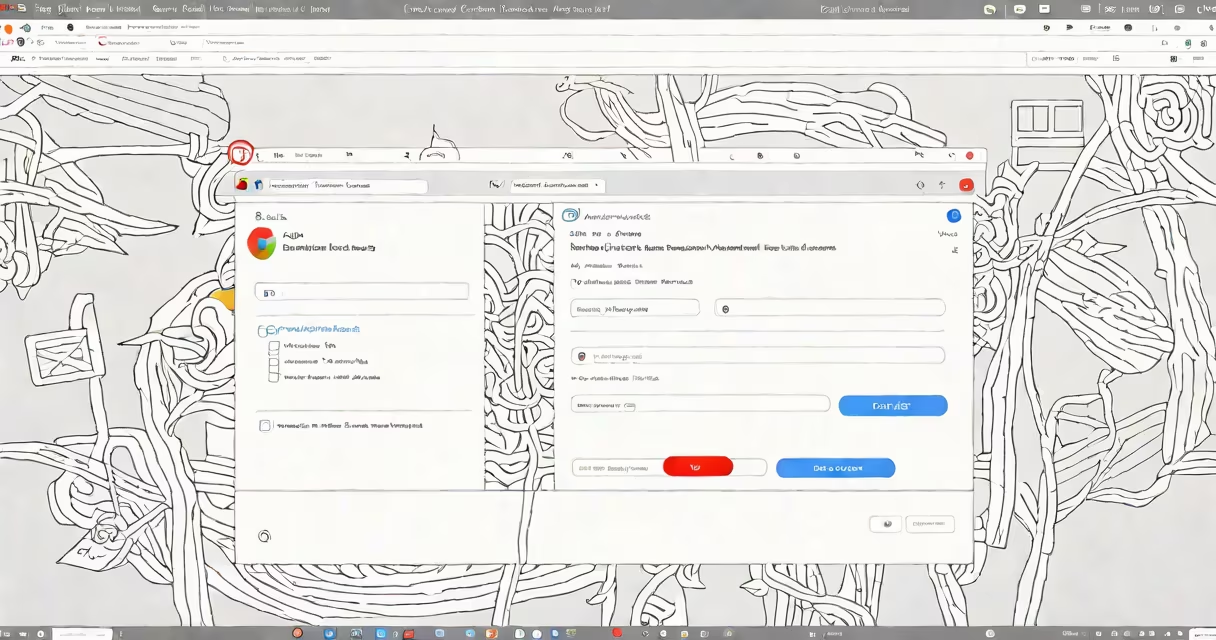
find my saved passwords refers to retrieving stored login credentials for websites and apps through browser settings, operating system keychains, or password management software. These tools store usernames and encrypted passwords so users don't have to remember them.
When you log into a site and check "save password," your device stores the information locally or in a cloud-synced vault. Access requires authentication-usually your device passcode, biometric scan, or master password. Without proper authorization, retrieval is blocked for security.
Most major browsers and email platforms offer built-in password storage. Chrome, Safari, Edge, Firefox, and Gmail all maintain their own password databases. Third-party managers like Bitwarden, 1Password, and LastPass provide centralized, cross-device access with stronger encryption.
When you enter a username and password on a website, your browser may prompt to save the details. If accepted, the data is encrypted and stored in a secure database tied to your device or account. This database is separate from regular browsing history and cannot be accessed via standard file explorers.
On Windows, Chrome uses the Windows Credential Manager. On macOS, Safari and Chrome rely on the Keychain Access app. Android and iOS store passwords in the system's secure enclave. All systems require device-level authentication-like a PIN, fingerprint, or Face ID-to enable saved credentials.
For example, if you've logged into your bank's website on Chrome and selected "save password," the entry appears under Chrome's password manager. To view it, open Chrome Settings → Passwords → "Passwords" tab. You'll see the site name, username, and a "Show" button to reveal the password.
There are three primary categories: browser-based, OS-level, and third-party password managers. Each offers different trade-offs in convenience, security, and accessibility.
| Type | Examples | Access Method | Security Level |
|---|---|---|---|
| Built-in browser | Chrome, Edge, Firefox | Browser settings, local device auth | Medium (depends on OS) |
| OS-level keychain | Safari Keychain, Windows Credential Manager | System login, biometrics | High (hardware-backed) |
| Third-party manager | Bitwarden, 1Password, LastPass | Master password, 2FA | Very high (end-to-end encryption) |
Third-party managers often outperform built-in tools. They support cross-platform sync, generate strong random passwords, and allow secure sharing. For example, Bitwarden lets you export a list of saved passwords in CSV format-but only after entering your master password and enabling two-factor authentication.
A common misconception is that saved passwords are stored in plaintext. They are not. Even if someone gains physical access to your device, they cannot read the passwords without unlocking the device or knowing your master password. The encryption keys are derived from your device passcode or master password, never stored in plain text.
Users typically access saved passwords when resetting a forgotten login, migrating to a new device, or auditing account security. A 2023 study by the National Institute of Standards and Technology (NIST) found that 62% of users reuse passwords across multiple sites-a major risk factor for account breaches.
Using find my saved passwords helps avoid password fatigue. Instead of memorizing dozens of unique combinations, users rely on trusted storage. This reduces the chance of weak passwords like "password123" or "123456."
For example, if you're setting up a new phone and want to restore your Netflix login, you can open Chrome on your old device, go to Settings → Passwords → "Export passwords," then import the file into Chrome on the new device. The process takes less than five minutes and preserves all saved credentials.
Many assume that "find my saved passwords" means recovering lost passwords from a hacked account. That's incorrect. These tools only retrieve credentials you've previously saved. If you didn't opt to save a password during login, it won't appear in the list-even if you've used the account many times.
Another frequent error is confusing saved passwords with autofill data. Autofill stores addresses, credit card numbers, and phone numbers. It does not store passwords unless explicitly enabled. Turning on "Save passwords" in Chrome settings is required to trigger password saving.
Some users try to access saved passwords on public computers. This is risky. Browsers may auto-fill fields even if you're not logged in. Always clear form data and close the browser after use. Use private browsing mode if you must access sensitive accounts remotely.
I once tested this on a shared work laptop. After logging into my personal email, I checked Chrome's password manager. It showed no entries-because I hadn't clicked "save" during login. The feature doesn't retroactively collect credentials. It only records what you approve at the time of sign-in.
Each platform has a distinct path to access saved credentials. Here's how:
For advanced users, Chrome allows exporting passwords via the command line. Run chrome://settings/passwords → Export → choose a location. The file is encrypted with your OS password. Only use this method on trusted devices.
Security experts recommend using a third-party manager over built-in tools. According to a 2022 report by the Electronic Frontier Foundation (EFF), third-party managers enforce stronger encryption standards and prevent cross-site leaks better than native browser solutions.
To find my saved passwords safely, always verify the device is yours and locked with a passcode. Avoid accessing password lists on untrusted networks or shared machines. If you suspect compromise, reset all affected accounts immediately.
Use a single master password across all services. Never write down passwords on paper or store them in unencrypted files. Enable two-factor authentication on every account that supports it.