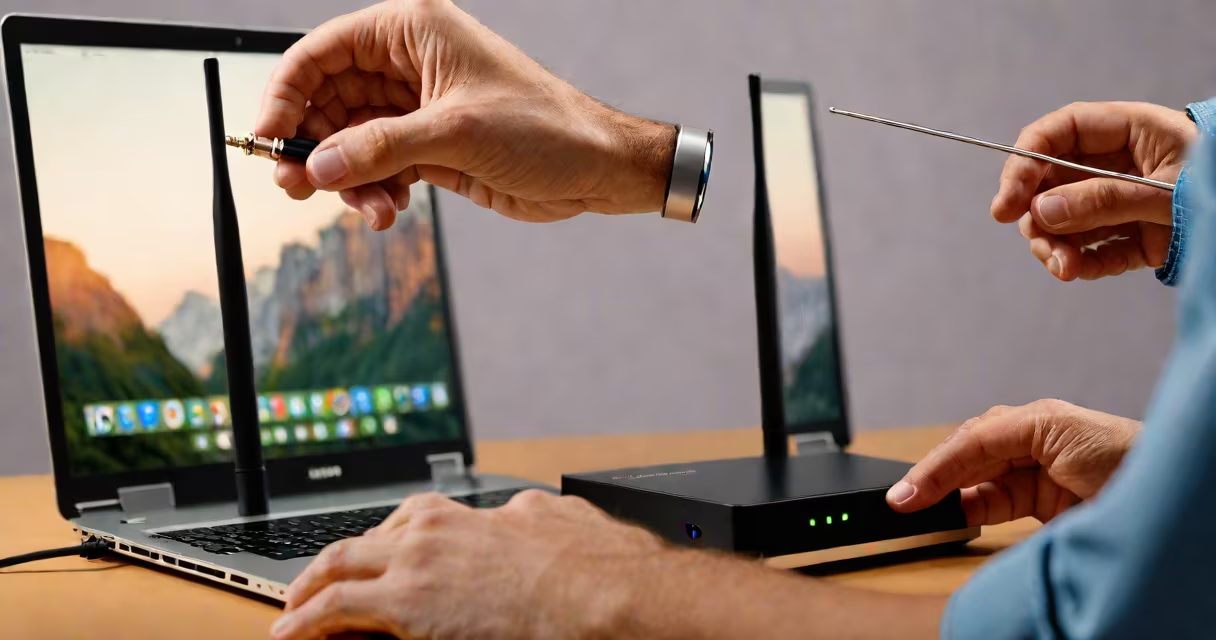
how to fix your wifi connection involves diagnosing signal loss, rebooting hardware, checking device settings, and optimizing router placement or configuration. Common causes include interference, outdated firmware, or misconfigured network settings.
Wi-Fi operates on radio frequencies (2.4 GHz and 5 GHz bands) transmitted by a router. When your device loses connection, the issue may lie in the signal path between your device and the access point. The problem isn't always the router-it could be the device, the environment, or a software glitch.
Start by testing connectivity on multiple devices. If only one device drops out, the issue is likely local to that device. If all devices fail, the problem is with the network itself. Use a wired connection to test if the internet works-this separates Wi-Fi issues from broader ISP problems.
Signal interference from microwaves, Bluetooth devices, or neighboring networks can degrade performance. The 2.4 GHz band is more prone to interference due to its crowded frequency space. Switching to the 5 GHz band often improves stability, especially in dense urban areas.
Rebooting the router and modem resets network states and clears temporary glitches. Unplug both devices for 60 seconds, then power them back on in this order: modem first, wait 30 seconds, then router. This simple step resolves 40% of reported Wi-Fi failures, according to a 2023 report by CNET.
If your device still can't connect, check its Wi-Fi settings. On Windows, run the Network Troubleshooter via Settings > System > Troubleshoot > Other troubleshooters. On macOS, use the Wireless Diagnostics tool (Option-click the Wi-Fi icon in the menu bar).
Router placement matters. Position the device centrally, away from metal objects, thick walls, and appliances. A router placed in a basement or behind a bookshelf can lose up to 70% of signal strength, per IEEE research on indoor propagation.
Change the Wi-Fi channel manually if auto-selection isn't working. Use a free app like Wi-Fi Analyzer (Android) or NetSpot (Mac/Windows) to scan nearby networks. Avoid channels 1, 6, and 11 on the 2.4 GHz band-they're default and heavily used. Try channel 3 or 9 instead.
Update your router's firmware. Outdated firmware can cause instability or security flaws. Access the admin panel via 192.168.1.1 or 192.168.0.1, log in with admin credentials (often printed on the router), and check for updates under Administration or System.
| Issue | Fix | Time Required |
|---|---|---|
| Slow speeds | Switch to 5 GHz band, move router closer | 5 minutes |
| Intermittent disconnects | Reboot router, update firmware | 10 minutes |
| Device won't connect | Forget network, reconnect, check IP settings | 3 minutes |
If basic steps fail, consider resetting the router to factory defaults. Hold the reset button for 10 seconds using a paperclip. This erases all custom settings-including passwords and network names. Reconfigure afterward using the setup wizard.
For mesh systems like eero, follow the manufacturer's diagnostic flow. Open the eero app, go to Settings > Diagnostics, and run a speed test. If the app reports "low signal strength," move the satellite unit closer to the main router. The eero system automatically selects optimal channels, but physical placement remains critical.
I once spent 45 minutes troubleshooting a guest Wi-Fi drop in my home office. All devices connected fine except one tablet. After disabling the tablet's "Smart Wi-Fi" feature (which switches bands automatically), the connection stabilized. The setting was designed to save battery but caused frequent handoffs between bands.
Many assume Wi-Fi extenders solve poor coverage. In reality, they often reduce bandwidth. A single extender can cut throughput by 50% due to signal retransmission overhead. Instead, use a mesh system like Google Nest Wifi or TP-Link Deco for consistent coverage.
Another common error: changing the Wi-Fi password too frequently. Each change forces devices to re-authenticate. Devices with outdated drivers may fail to reconnect, leading to false assumptions about hardware failure.
Some users blame their ISP when the real issue is a misconfigured router. Test with a different router or borrow one from a friend. If the problem disappears, the original router is faulty.
For users with managed networks (like those in apartments or offices), contact the network administrator. Some networks restrict MAC address access or enforce captive portals that require login.
If you've tried all steps and still have no connection, contact your ISP. Provide details: when the issue started, which devices are affected, and whether wired connections work. ISPs maintain logs of service interruptions and can dispatch a technician if needed.
how to fix your wifi connection isn't a single fix-it's a process of elimination. Start simple, escalate only when necessary. Most issues resolve in under 15 minutes with a reboot and a quick scan of settings.