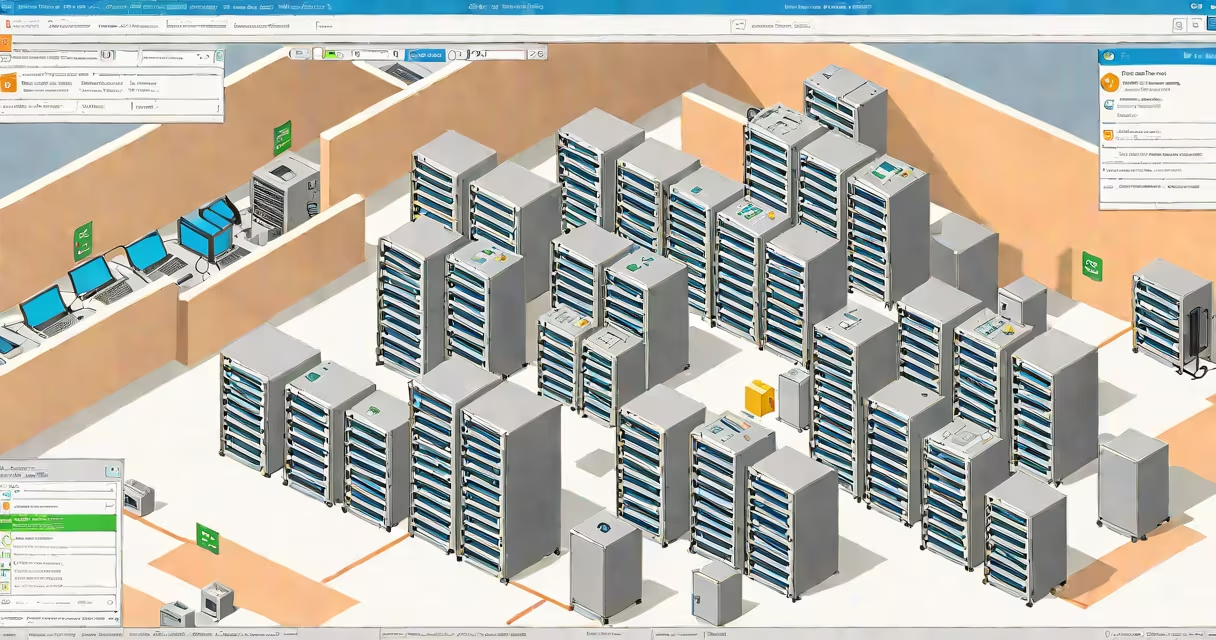
The rds licensing server is a Windows Server role that tracks and enforces license usage for Remote Desktop Services (RDS) clients. It ensures organizations comply with Microsoft's licensing terms by validating that each connection to an RDS host is backed by a valid license.
RDS licensing server operates as part of a larger Remote Desktop Services infrastructure. When a user attempts to connect to a Remote Desktop Session Host (RD SH), the connection request goes through the licensing server. The server checks whether a valid client access license (CAL) exists for that user or device. If a license is available and properly assigned, the connection proceeds. Without a valid license, the session is denied.
This system prevents unlicensed use of RDS, which could result in legal penalties under Microsoft's software agreement. The licensing server does not manage user authentication or session routing-it only handles license validation. It runs on a dedicated Windows Server instance and integrates with Active Directory for centralized management.
When a user connects to an RDS session host, the host sends a license request to the designated rds licensing server. The server responds with either a "license granted" or "license denied" message based on its current license pool and configuration.
Licensing mode determines how licenses are tracked. There are two modes: Per User and Per Device. In Per User mode, a single license covers all devices a user accesses. In Per Device mode, each device requires its own license. Organizations choose based on user mobility and device ownership patterns.
Each license is tied to a specific RDS CAL (Client Access License). These CALs are purchased separately from Microsoft and must be activated on the licensing server. Once activated, the server tracks how many licenses are in use versus available. A typical enterprise might deploy 100 CALs for 50 users who access RDS from multiple devices, relying on Per User licensing to reduce overhead.
The rds licensing server consists of several key elements:
Configuration begins with installing the Remote Desktop Licensing role. This step requires administrative privileges and a stable network connection. After installation, the server must be activated online or offline using a product key. Online activation verifies the license purchase with Microsoft's servers.
Once activated, administrators assign CALs to users or devices. For example, a company with 150 employees might purchase 150 Per User CALs. Each employee is then assigned a license in the RDS Licensing Manager. If an employee connects from a personal laptop, the system checks for a valid license associated with their account.
A frequent error is assuming the rds licensing server manages user sessions or authenticates logins. It does not. Authentication is handled by Active Directory or a separate identity provider. The licensing server only validates licensing eligibility.
Another misconception is that the licensing server must run on the same physical machine as the RD Session Host. This is false. The licensing server can be on a different server, even in another data center, as long as network connectivity and firewall rules allow traffic on port 135 (RPC) and changing ports.
Many organizations fail to monitor license exhaustion. When all CALs are in use, new connections are blocked-even if the server has unused capacity. To avoid this, set up alerts in System Center Operations Manager (SCOM) or use PowerShell scripts to check license availability daily.
There are two primary licensing models for RDS:
| Model | Use Case | Example |
|---|---|---|
| Per User | Users access RDS from multiple devices (laptops, tablets, home PCs) | 50 employees, each using RDS from 2 devices. 50 CALs suffice. |
| Per Device | Fixed workstations or shared terminals (e.g., kiosks, call centers) | 100 shared computers in a support center. 100 CALs required. |
Organizations often mix both models. For example, a hybrid workforce may use Per User for remote staff and Per Device for on-site workstations. Mixing models requires careful planning to avoid over-purchasing or under-licensing.
For large deployments, organizations use multiple licensing servers in a cluster for high availability. This setup ensures continuity during maintenance or outages. Failover is managed through DNS load balancing and shared storage for license databases.
A university IT department deployed RDS to provide students with access to specialized engineering software. They had 800 student accounts and 120 faculty members. Students accessed RDS from personal laptops and lab computers.
The team chose Per User licensing because students frequently switched between devices. They purchased 1,000 Per User CALs through Microsoft's VLSC portal. After activation, they configured the rds licensing server to track usage across campus.
During finals week, 600 students connected simultaneously. The licensing server showed 598 licenses in use-well within the 1,000-CAL limit. No connection failures occurred. The IT team used the built-in reporting tool to generate a weekly audit report, confirming compliance with Microsoft's licensing terms.
Confusion often arises between the rds licensing server and the RD Session Host. The Session Host runs the actual applications and desktops. It handles session creation, resource allocation, and user input/output. The licensing server only validates licenses.
Think of it this way: the Session Host is the classroom. The licensing server is the attendance clerk. The clerk doesn't teach or manage desks-but they verify that each student has a seat.
Microsoft's documentation confirms this separation: "The RDS Licensing role does not provide remote desktop functionality. It only manages license tracking." (Microsoft Learn)
I once audited a healthcare provider's RDS deployment. Their licensing server was offline for 14 days due to a misconfigured backup job. During that time, users couldn't connect to virtual desktops. The issue wasn't detected until helpdesk tickets spiked. The root cause was a missing alert on license pool depletion. After adding monitoring, we caught similar issues within minutes.
Microsoft conducts audits to verify license compliance. If an organization is found using more RDS CALs than licensed, it faces fines and mandatory remediation. The average penalty for non-compliance ranges from $5,000 to $25,000 per incident, depending on size and duration (Microsoft Licensing Terms).
To stay compliant, maintain accurate records of CAL purchases, activations, and assignments. Use tools like Microsoft's License Advisor or third-party solutions such as Flexera to track usage across environments.
The rds licensing server is essential for legally operating Remote Desktop Services. It enforces licensing agreements, prevents unauthorized access, and supports audit readiness. Proper configuration and ongoing monitoring prevent service disruptions and financial risk. Always ensure your licensing server is active, licensed, and integrated with your RDS environment.