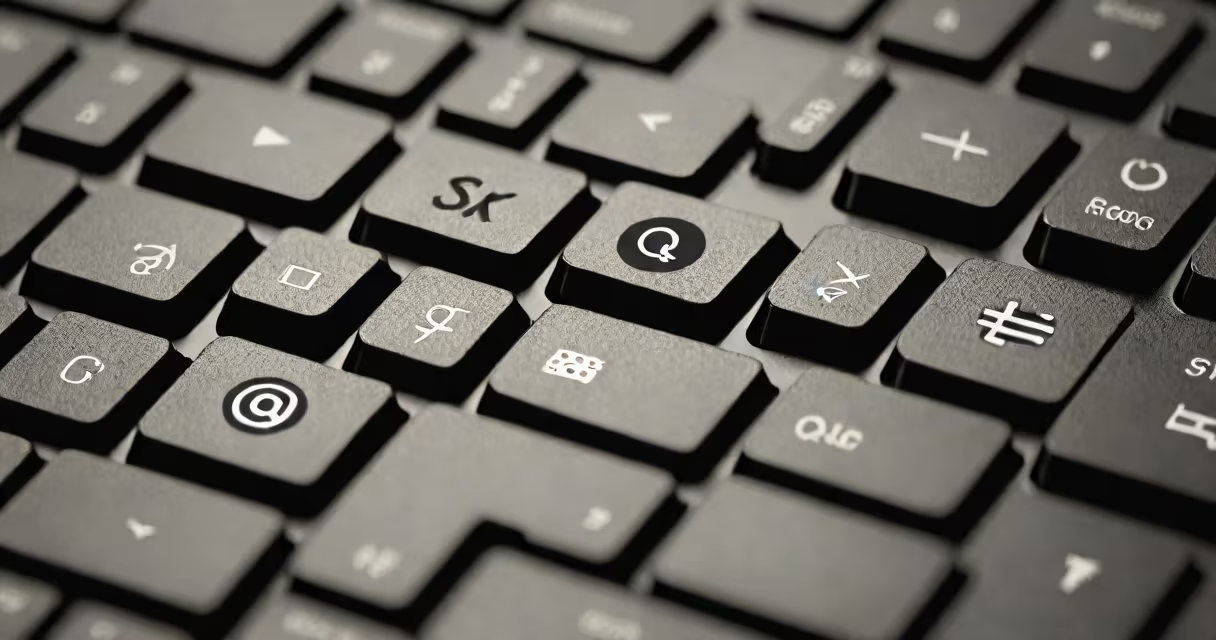
A symbol in computer keyboard is any character that is not a letter, digit, or space, used for punctuation, mathematical operations, formatting, or special functions. These include @, #, $, %, &, *, +, =, <, >, ?, /, \, |, ~, ^, and many others.
These symbols appear on physical keyboards as printed icons above or near specific keys. On most standard QWERTY layouts, they are accessed either directly via the key's top label or through modifier keys like Shift, Alt, or Ctrl. For example, pressing Shift + 2 produces the @ symbol on U.S. keyboards.
Each symbol serves a distinct purpose. The @ sign identifies email addresses. The # symbol denotes hashtags on social media. The $ symbol represents currency. The & symbol stands for "and" in informal writing. These functions are standardized across operating systems and applications.
Keyboards map physical key presses to digital character codes using encoding standards like ASCII or Unicode. When you press a key labeled "#", the keyboard sends a signal to the computer that corresponds to the Unicode code point U+0023. The operating system then renders the correct symbol on screen based on the current font and input method.
Some symbols require multiple keystrokes. The € symbol (euro sign) appears on many European keyboards but is not available on U.S. keyboards without using a combination like Alt + 0128 (on Windows) or Option + 2 (on macOS). This shows that symbol availability depends on both hardware layout and software configuration.
On laptops without dedicated number pads, numeric symbols are often accessed via Fn + function key combinations. For example, pressing Fn + F11 may produce the "&" symbol on certain models. This demonstrates how keyboard design influences symbol access.
Keyboard symbols fall into several functional categories:
| Type | Examples | Common Uses |
|---|---|---|
| Punctuation | ., ; : ! ? | Ends sentences, separates clauses, indicates tone |
| Mathematical | + − × ÷ = ≠ ≤ ≥ | Arithmetic, inequalities, equations |
| Special Characters | @ # $ % & * ( ) _ + | Emails, passwords, formulas, markup |
| Formatting | < > { } [ ] | ~ | Code syntax, file paths, regular expressions |
For instance, the asterisk (*) is used in programming to denote multiplication and in wildcards like *.txt to match files. The less-than (<) and greater-than (>) signs are essential in HTML and XML markup to define tags.
Some symbols have dual roles. The show (_) acts as a word separator in filenames and variable names (e.g., user_name), but also appears in mathematical notation for subscripts.
Text editors, messaging apps, and spreadsheets rely on symbols to convey meaning precisely. In Excel, the equals sign (=) initiates formulas. In Python, the colon (:) begins code blocks. Without these symbols, structured language would collapse.
Programming languages depend heavily on symbols. The semicolon (;) ends statements in C, Java, and JavaScript. The hash (#) introduces comments in Ruby and Python. Misplacing a single symbol can cause entire programs to fail.
Security systems use symbols in password creation. A strong password includes uppercase letters, numbers, and symbols like !@#$%^&*. According to NIST Special Publication 800-63B, requiring symbols increases password entropy and resistance to brute-force attacks.
Many users confuse the tilde (~) with the circumflex (^). The tilde appears above the "n" in Spanish and is used in URLs and file paths. The circumflex is used in mathematics and programming for exponentiation (e.g., 2^3 = 8).
Another frequent error is mistaking the lowercase L (l) for the number 1 or the capital I (I). This leads to confusion in serial numbers, license keys, and authentication tokens. Some fonts render these characters nearly identically, increasing the risk of input errors.
Users often overlook the difference between the hyphen (-), en dash (-), and em dash (-). While all are short horizontal lines, they serve different typographical purposes. The hyphen connects words (e.g., well-known). The en dash indicates ranges (e.g., pages 10-15). The em dash sets off parenthetical content (e.g., She arrived-late-as expected).
One non-obvious fact: the backslash (\) is not symmetric. It points left, unlike the forward slash (/), which points right. This matters in file paths and regular expressions. In Windows, paths use backslashes (C:\Users\John), while Unix-based systems use forward slashes (~/Documents).
To create an email like [email protected]:
This sequence uses five symbols: two periods, one @, and two letters. All are standard keyboard characters. The process fails if the user accidentally presses Shift + 7 (which produces *) instead of Shift + 2.
I once watched a colleague spend ten minutes trying to send an email because they kept typing "[email protected]" with a missing "e" in "example." The typo wasn't caught until the server returned a "user not found" error. This illustrates how small symbol errors lead to big problems.
When working with technical documents, always verify symbol behavior across platforms. A command that works in Linux terminal may fail in Windows Command Prompt due to differing escape sequences and symbol interpretations.
The symbol in computer keyboard is not just a visual element-it's a functional component of digital communication. Its correct use ensures clarity, accuracy, and interoperability across devices and systems.