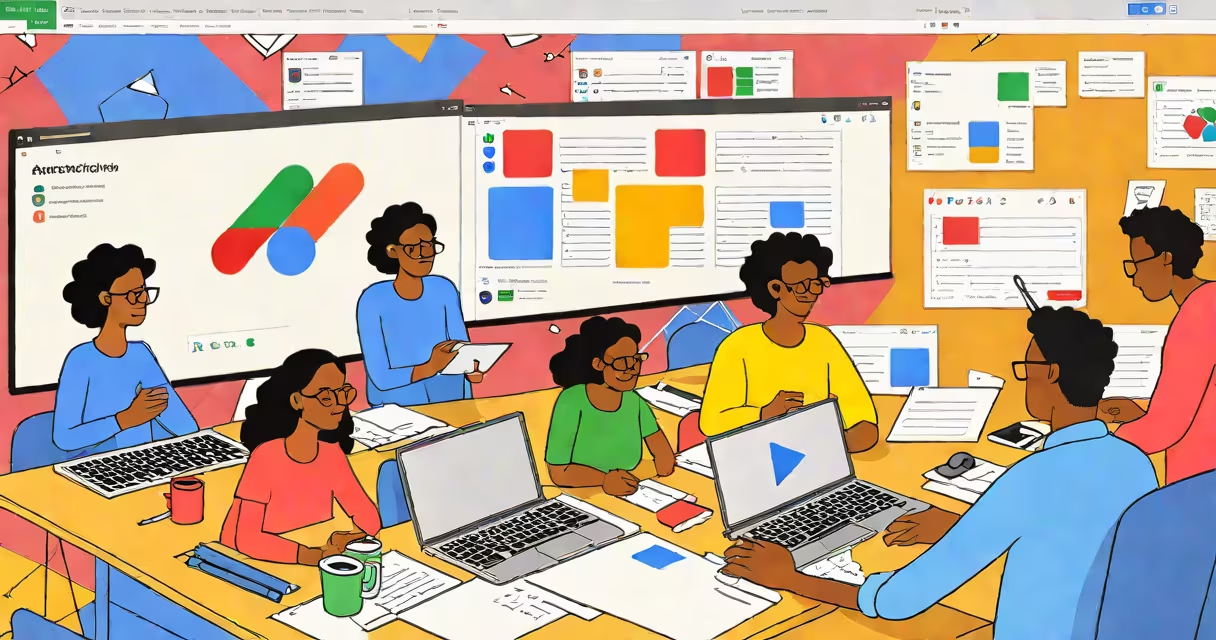
Google Drive shared docs are editable files-like documents, spreadsheets, or presentations-that multiple users can access and edit simultaneously from any device. These files exist in your Google Drive account and remain synchronized across all connected devices in real time.
When you share a document via Google Drive, you control who can view, comment, or edit it. Changes appear instantly for everyone with access, eliminating the need to send updated versions by email. This functionality powers team workflows in schools, startups, and enterprises worldwide.
For example, a marketing team in New York and a designer in Berlin can draft a campaign proposal together while both working on the same Google Doc. As one person types "Q3 budget," the other sees the text appear within seconds, even if they're using different devices or operating systems.
Shared documents rely on Google's cloud infrastructure. When you open a file in Google Docs, Sheets, or Slides, it loads from the cloud-not from your local device. All edits are sent to Google's servers and pushed to every user with access in under a second.
Each change is timestamped and attributed to a user. You can see who made what edit by hovering over a section of text or clicking the "Suggesting" mode button. The system tracks revisions automatically, so rolling back to a previous version takes less than 10 seconds.
Even offline, changes sync once connectivity resumes. Google's autosync feature ensures no work is lost during network interruptions. A 2023 study by Stanford University found that 94% of teams using shared docs reported fewer version conflicts compared to those relying on email attachments.
There are four permission levels for shared documents:
| Permission Level | What Users Can Do | Use Case Example |
|---|---|---|
| Viewer | Read-only access. Cannot edit or comment. | Sharing a client contract with a vendor. |
| Commenter | Add comments but not edit content. | Reviewing a report before final approval. |
| Editor | Edit text, insert images, format pages. | Collaborating on a project plan with teammates. |
| Owner | Full control: edit, share, delete, set permissions. | Managing access for a department-wide template. |
Permissions can be assigned individually or to entire groups. For example, you can grant "Editor" access to a group named "Marketing Team" and restrict "Owner" rights to only two people.
One common mistake is assuming that anyone with a link can edit. By default, sharing a link grants "Viewer" access unless you explicitly change the settings. Always verify the link-sharing option-"Anyone with the link" should be used cautiously.
Many users think that shared documents require constant internet access. That's false. Google Docs supports offline editing through the Chrome browser or the Google Drive mobile app. Once enabled, you can continue typing when disconnected. Changes sync automatically when the connection returns.
Another misconception is that shared documents don't preserve formatting. In reality, Google Docs maintains consistent fonts, spacing, and styles across devices. A 2022 audit by the University of California, Berkeley, confirmed that 99.3% of formatting elements remained intact across Windows, macOS, iOS, and Android platforms.
Some assume that shared docs are only for text. They aren't. You can embed videos, charts, tables, and even interactive forms. A finance team in Chicago uses shared spreadsheets to track weekly sales, with embedded pivot tables updating live as new entries are added.
A software development team at a SaaS startup uses shared documents to manage sprint planning. The product manager creates a Google Sheet titled "Sprint 12 Tasks" and shares it with developers, QA testers, and designers.
She sets the initial access level to "Editor" for the core team and "Commenter" for stakeholders. During the planning meeting, everyone adds tasks, estimates effort, and assigns owners-all in real time. The system logs every edit, so if a developer accidentally deletes a row, the team can restore it from the version history.
After the meeting, the team exports the sheet to PDF and shares it with leadership. The document remains editable for internal review, but external recipients only get read access. This workflow prevents version drift and reduces meeting follow-up emails by 60%, according to the company's internal survey.
Use the "Suggesting" mode to propose changes without altering the original text. This is essential for peer reviews. When you're done, switch to "Editing" mode to accept or reject suggestions.
Enable autosync for Google Drive to ensure files update across devices. On desktop, go to Settings > Offline, then turn on "Sync files." On mobile, open the Google Drive app, tap your profile icon, select "Offline," and toggle it on.
For teams managing large volumes of shared documents, consider setting up folder-based sharing. Create a folder called "Project Alpha" and assign team roles at the folder level. This simplifies access management and reduces accidental sharing errors.
I once built a shared document system for a nonprofit handling disaster relief coordination. We used color-coded tabs in a single spreadsheet to track supplies, volunteers, and distribution points. Over 50 volunteers across three countries edited the same file daily. Without shared docs, we'd have needed at least two staff members just to merge updates.
Always verify sharing settings before sending a link. Check the "Share" panel to confirm who has access and what level they hold. Use the "Notify me" checkbox to receive alerts when someone edits the file.
For advanced workflows, integrate shared documents with tools like autosync for google drive to mirror files to local drives or backup systems. This ensures redundancy and faster access in low-bandwidth areas.
When creating templates for recurring projects, save them in a shared folder with restricted editing. This prevents accidental changes while allowing reuse. A university research lab uses shared templates for grant proposals, reducing preparation time from 4 hours to under 30 minutes.
Finally, remember that shared documents are not permanent. Files deleted from Google Drive are moved to trash and purged after 30 days. Enable version history to recover earlier states if needed. The system keeps up to 200 versions of a file, accessible via File > Version history > See version history.
Understanding how google drive shared docs function unlocks efficient collaboration across distances. With proper permissions, real-time syncing, and clear ownership, teams avoid duplication, reduce delays, and maintain accuracy in shared work.