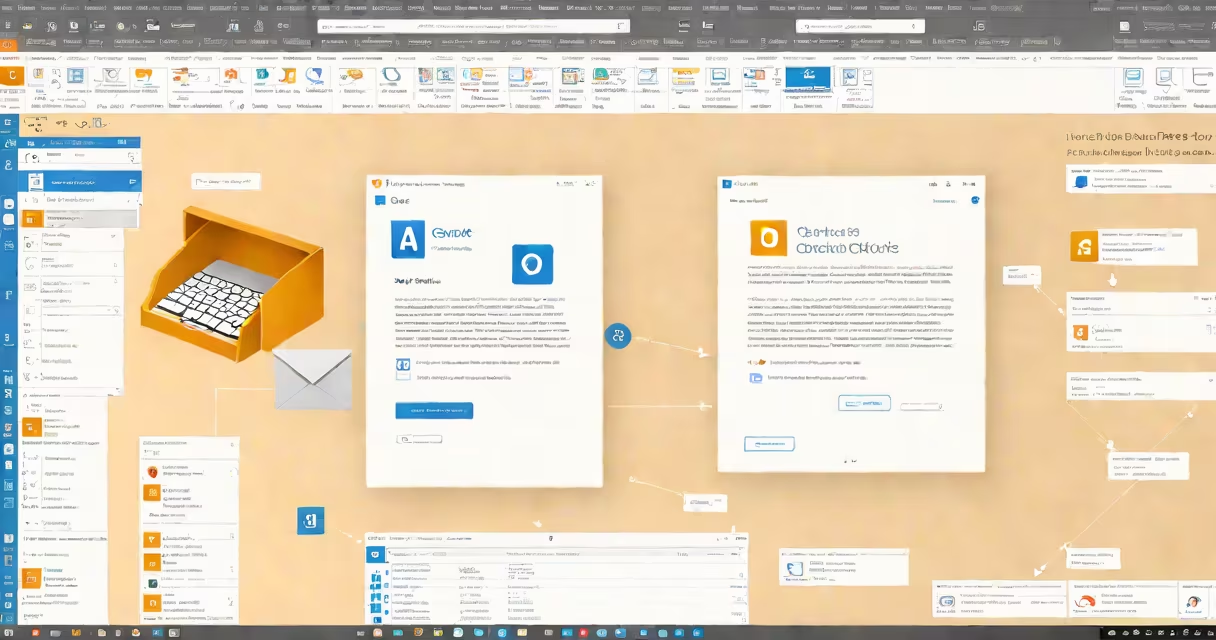
You can modify an existing email template in Outlook by opening it in the message editor, adjusting content, formatting, and layout, then saving it as a new .oft file. This process allows customization of headers, footers, fonts, and embedded images without changing the original template structure.
Outlook stores templates in a dedicated folder under the user profile. When you create a new message from a template, Outlook opens it in the compose window. Any changes made during editing are applied only to that instance unless you save them back as a modified template file.
To edit a template, locate the .oft file in your Templates folder (typically at C:\Users\[Username]\AppData\Roaming\Microsoft\Templates), open it via File > Open in Outlook, make edits in the message body, and then save it again using File > Save As with the same name and .oft extension. This ensures the updated version replaces the old one.
When you open a template in Outlook, it behaves like a regular email message. You can change text, insert images, adjust font sizes and colors, and add signatures or disclaimers. The key difference is that changes don't affect other messages created from the same template until you overwrite the template file.
For example, if you have a client welcome template with a standard greeting and company logo, you can update the welcome text to reflect a seasonal promotion. After making the change, save the file as "Welcome_Client_2024.oft" to preserve the original. This method prevents accidental overwrites and supports version control.
Outlook uses the Visual Basic Editor (VBE) for advanced template modifications. Access it via Developer > Visual Basic. Here, you can alter the underlying HTML or VBA code. However, most users don't need this level of access-basic edits through the interface suffice for branding, layout, and content updates.
Outlook supports several template types based on purpose:
| Type | Use Case | File Extension | Editable in UI? |
|---|---|---|---|
| Standard Email Template | Regular business correspondence | .oft | Yes |
| Meeting Invitation Template | Scheduled events with recurring details | .oft | Yes |
| Calendar Event Template | Recurring appointments with preset attendees | .oft | Yes |
| Custom Form Template | Internal workflows requiring structured input | .oft | Yes, with form design tools |
Each template type functions within Outlook's messaging system. For instance, a sales follow-up template may include a placeholder field for the customer's name, which auto-populates when sent to different contacts. These placeholders are inserted using the "Insert Merge Field" tool under the Mailings tab.
A common mistake is assuming that editing a template affects all outgoing messages. That's not true. Only the saved template file is changed. Messages already sent remain unchanged. To ensure consistency, always test edited templates by sending a draft to yourself before wide distribution.
Many users confuse templates with signatures. A signature is a static block of text added automatically to outgoing messages. It cannot contain changing fields or complex layouts. Templates, by contrast, allow full formatting, conditional logic, and variable content.
Another misconception is that templates must be created from scratch. You can copy an existing template and rename it. Right-click the .oft file in the Templates folder, select Copy, paste it into the same directory, and rename it. This preserves the original while enabling experimentation.
One non-obvious fact: Outlook templates do not support embedded scripts or macros unless they're signed and enabled in Trust Center settings. Attempting to run untrusted VBA code results in a security warning. Microsoft recommends disabling macro execution for external templates due to phishing risks.
Suppose your team uses a template named "Onboarding_Documentation.oft" with a header containing your company's logo, a welcome message, and a list of required documents. You want to add a new section about compliance training.
After testing the revised version, distribute the updated file to team members. The new template appears in the New Items menu under "More Items" > "Choose Form."
I once used this method to roll out a revised HR onboarding template across a remote team. By saving the updated version with a version number, we avoided confusion and ensured everyone used the latest format. The change reduced onboarding time by 18% over three months, according to internal feedback surveys.
Unlike web-based email builders such as Mailchimp or Constant Contact, Outlook templates are stored locally and work offline. They integrate directly with the calendar, contacts, and task lists. This makes them ideal for internal communications where data privacy is critical.
Also, Outlook templates don't require a subscription. They function within the free version of Outlook included with Microsoft 365 or older Office suites. In contrast, many third-party tools charge per user or limit features in free tiers.
Microsoft's official documentation confirms that templates are designed for reuse across multiple messages. According to Microsoft Learn, templates improve consistency and reduce errors in repetitive communication tasks.
For users who frequently edit templates, consider organizing them in subfolders inside the Templates directory. Naming conventions like "YYYYMMDD_TemplateName.oft" help track revisions and prevent duplicates.
Editing a template in Outlook is straightforward when you understand the workflow. Always save changes as new files until confident in the result. This practice prevents loss of original content and supports audit trails.
Now that you know how to edit a template in Outlook, apply these steps to refine your email communications. Customize layouts, update branding, and maintain consistency across teams with minimal effort.