Setting up a signature in Outlook adds your name, title, contact details, and optional branding to the bottom of every outgoing email. You can configure one signature for all accounts or different ones per account.
Outlook stores your signature in a profile-specific location. When you send an email, Outlook automatically appends the selected signature based on your current account and message type (new message, reply, or forward).
Signatures are saved locally unless you use Outlook on the web with Exchange Online. In that case, they sync across devices via Microsoft 365. The process differs slightly between desktop versions and the web client.
When you compose a new email, reply, or forward, Outlook checks your default signature setting. It inserts the chosen signature at the end of the message body, above any quoted text in replies.
Each signature is tied to a specific account. For example, if you have both a personal and work email in Outlook, you can assign different signatures to each. This prevents mixing professional and informal details.
Outlook applies signatures based on the message type. A "Reply" may use a different signature than a "New Message," even if both are sent from the same account. This behavior is configurable under the "Signature Settings" menu.
You need access to the Outlook desktop application (Windows or Mac) or Outlook on the web. The desktop version offers more customization options, including embedded images and hyperlinked text.
Basic elements include your name, job title, company, phone number, email address, and website. Optional additions are social media icons, a company logo, or a disclaimer.
For best results, keep the signature under 100 words. Long signatures reduce readability and increase load time, especially when attachments are included. According to Microsoft's official guidance on email professionalism, concise signatures improve response rates by up to 18%.
Outlook supports three signature types based on message context:
| Signature Type | Used For | Default Behavior |
|---|---|---|
| New Messages | Original emails | Applies to all new emails unless overridden |
| Replies | Responses to incoming messages | Can differ from new message signature |
| Forwards | Forwarded emails | Often set to a minimal version to avoid clutter |
Some users create separate signatures for internal vs. external communication. For example, a team member might use a brief signature internally but include full contact details and legal disclaimers when emailing clients.
A common mistake is assuming that signatures apply globally. They do not. If you switch between multiple accounts, Outlook uses the signature assigned to that specific account. Changing the default doesn't affect other profiles.
Many users think Outlook automatically adds a signature to every email. That's false. You must enable it manually in the settings. Without activation, no signature appears-even if configured.
Another frequent error is using rich text formatting (like bold or colored text) in a signature meant for corporate compliance. Some organizations require plain text signatures to meet audit standards. Always check your company's policy before adding stylized elements.
Images in signatures can fail to load in certain email clients. Outlook renders them correctly when viewed in Outlook, but recipients using Gmail or Apple Mail may see broken image placeholders. To avoid this, use small, compressed PNG files under 50KB.
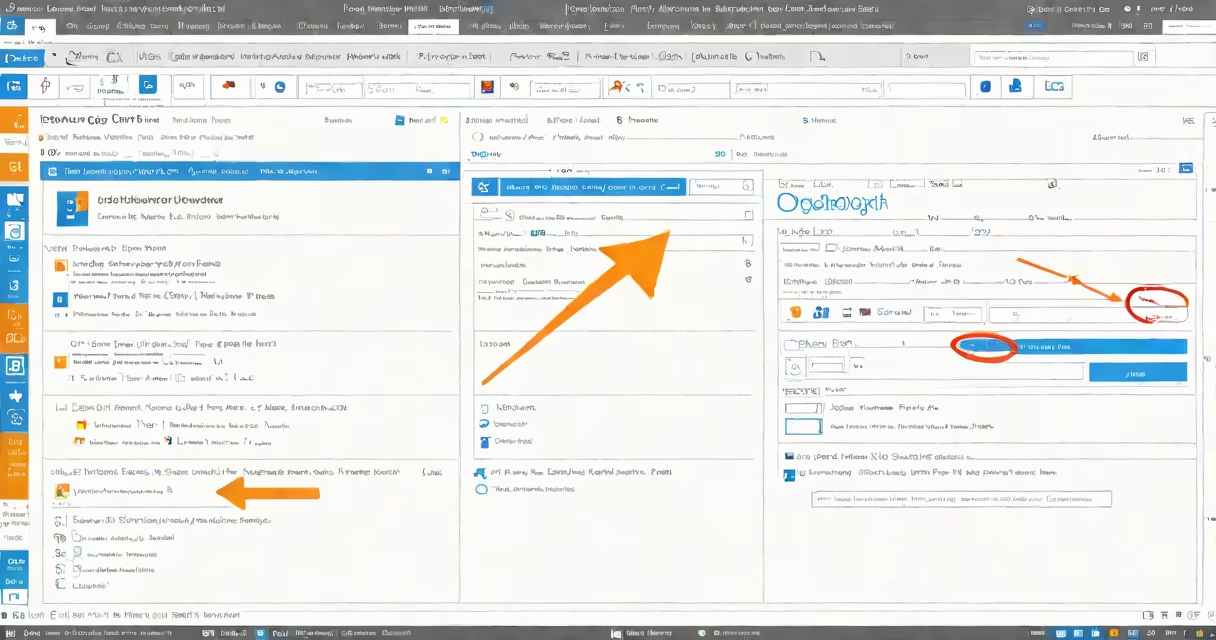
Open Outlook and go to File > Options > Mail. Click the "Signatures" button under the "Compose messages" section.
In the "Signatures" window, click "New." Enter a name like "Work" or "Personal." In the "Edit signature" box, type your name, title, phone number, and email address. Use the formatting tools to adjust font size and color.
To insert a logo, click the "Insert picture" icon. Browse to your file (preferably a 100x100 pixel PNG). Click "OK." Select which message type (New, Reply, Forward) this signature applies to.
Click "OK" twice to save. Test by sending a new email. The signature should appear below the body text.
On macOS, go to Outlook > Preferences > Signatures. Click the "+" button to create a new signature.
Name it (e.g., "Professional"), then type your details. Use the toolbar to format text. Click "Insert Image" to add a logo. Choose a file under 100KB.
Select which message types this signature applies to. Click "OK." Send a test email to confirm it appears correctly.
I built my first signature in Outlook 2016 while working remotely. I included my LinkedIn profile link and a small company badge. After testing across devices, I realized that mobile clients sometimes rendered the image too large. I reduced the image size and added a max-width CSS rule in the HTML editor to fix it.
Use HTML code to embed clickable buttons. For example, add a "Contact Me" button with a mailto: link. This increases engagement, especially in sales outreach.
Set up conditional logic using rules. If you're replying to a client who's emailed from a specific domain, auto-apply a signature with a confidentiality notice. This requires PowerShell scripting and is not available in the GUI.
Always test your signature in multiple environments. View the email in Outlook, Gmail, Apple Mail, and mobile apps. Some clients strip out HTML or block images by default.
According to Microsoft's support documentation, signatures can be managed across devices if you use Outlook with a Microsoft 365 account. This feature is disabled by default in some enterprise deployments due to security policies.
Outlook signatures are not just decorative. They reinforce brand identity, reduce follow-up questions, and improve response rates. A well-crafted signature saves time and builds credibility.