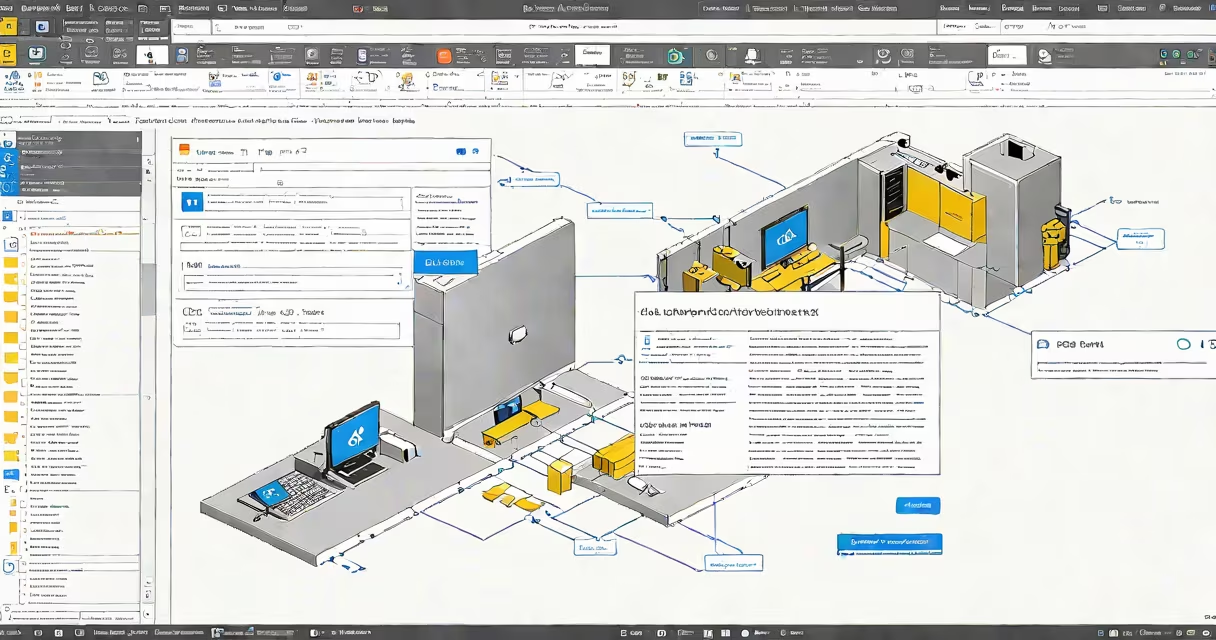
Setting up Outlook email requires entering your account credentials, selecting the correct server settings, and verifying access. The process differs slightly between Windows, Mac, and mobile platforms, but all require your email address, password, and either POP or IMAP configuration.
Outlook uses Microsoft's proprietary protocols to connect to email servers. When you enter your email address and password, Outlook attempts to auto-detect the correct settings for your provider. For most services like Gmail, Yahoo, or custom domains, this works reliably. If auto-detection fails, manual configuration is required using known server addresses and port numbers.
For example, setting up a Gmail account in Outlook requires the incoming mail server (IMAP) to be imap.gmail.com on port 993 with SSL encryption, and the outgoing server (SMTP) to be smtp.gmail.com on port 587 with TLS. Without these exact values, messages fail to send or receive.
Outlook connects to your email provider's server through standard internet protocols. When you begin setup, Outlook checks your domain for a service record (SRV) or tries common configurations based on your email provider. This is called automatic discovery.
If your email is hosted by a major provider like Microsoft 365, Google Workspace, or iCloud, Outlook often detects the correct settings within seconds. The system queries the domain's DNS records to locate the mail server endpoints and security requirements.
When automatic detection fails-common with small business providers or older accounts-you must manually input the server details. This includes specifying whether to use POP or IMAP for incoming mail, and choosing the correct port and encryption method (SSL/TLS).
There are two primary methods for connecting Outlook to your email: automatic setup and manual setup. Automatic setup works for most popular email services. Manual setup is needed for custom domains, legacy systems, or when authentication fails.
| Setup Type | Use Case | Required Info | Success Rate |
|---|---|---|---|
| Automatic | Gmail, Yahoo, Outlook.com, iCloud | Email address, password | ~95% |
| Manual (IMAP) | Custom domains, GoDaddy, cPanel-based hosting | Server addresses, ports, encryption type | ~70% |
| Manual (POP) | Legacy systems, offline archiving | Same as IMAP, plus download preferences | ~60% |
IMAP is recommended for most users because it syncs messages across devices. POP downloads messages to one device and removes them from the server, which limits access from other devices.
A common mistake is selecting POP when IMAP is available. This leads to missing emails on mobile devices or web clients. According to Microsoft's documentation, IMAP is the default protocol for new accounts in Outlook since 2020.
Outlook email setup is essential for anyone using Microsoft Outlook as their primary email client. It's widely adopted in professional environments due to integration with calendars, contacts, and task management tools.
Businesses using Microsoft 365 often require employees to set up Outlook via company policies. The process involves entering a work or school email address and allowing the organization's admin to push configuration settings automatically.
For personal use, setting up Outlook allows centralized access to multiple accounts. A single Outlook profile can manage Gmail, Yahoo, and a custom domain email-all under one interface. This reduces the need to switch between browser tabs and email apps.
Many users assume that setting up Outlook means creating a new email account. That's incorrect. You're configuring an existing account to work with the Outlook application. Creating a new email requires signing up with a provider like Outlook.com or Gmail.
Another frequent error is confusing "Outlook.com" with "Microsoft Outlook." Outlook.com is a free email service. Microsoft Outlook is desktop software that can access Outlook.com, Gmail, or any IMAP-capable email provider.
A non-obvious point: Outlook may prompt for an app password when two-factor authentication (2FA) is enabled. This happens because Outlook doesn't support modern OAuth2 flows for all providers. If you see a message saying "Sign in failed," check your 2FA settings and generate an app-specific password.
I once configured Outlook for a client using a GoDaddy-hosted email. Auto-detection failed despite a valid domain. After checking GoDaddy's official documentation, I discovered they use port 995 for IMAP with SSL, not port 993. Correcting this detail resolved the connection issue.
Follow these steps to manually set up a GoDaddy-hosted email in Outlook:
After setup, verify that incoming and outgoing messages appear correctly. If sending fails, check that your SMTP server allows TLS connections and that your firewall isn't blocking port 465.
When troubleshooting, always confirm that your email provider supports IMAP. Some older accounts only allow POP. If you're unsure, contact your provider's support team and ask for the latest IMAP configuration guide.
Understanding how to setup outlook email ensures reliable access to your inbox across devices. Whether managing personal correspondence or business communications, proper configuration prevents missed messages and login failures.