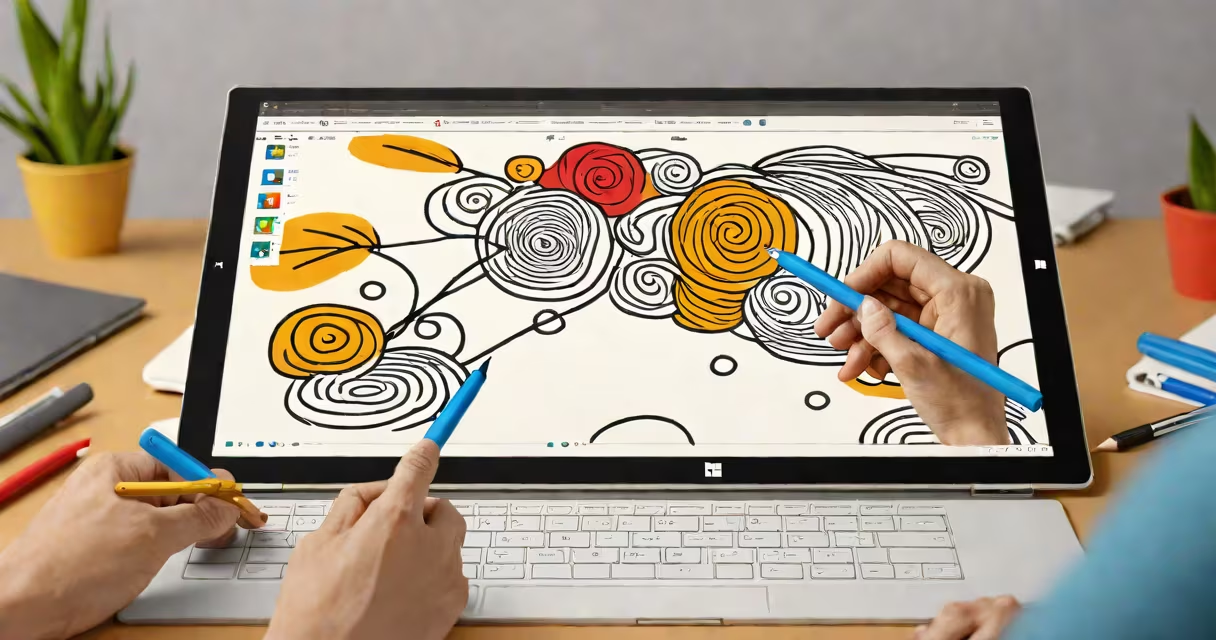
Microsoft Ink Canvas is a native Windows feature that transforms touch and stylus input into a responsive digital sketching and note-taking surface. It enables users to draw, annotate, and capture ideas directly on supported devices like Surface Pro, Surface Laptop, and other Windows tablets with pen support.
Launched with Windows 10 and expanded in Windows 11, Ink Canvas operates independently of specific apps. It activates instantly when you tap or press a stylus on a touchscreen or tablet device. The interface appears as a clean, transparent workspace where you can sketch, write notes, or create diagrams using your finger or stylus.
Unlike traditional drawing apps, Microsoft Ink Canvas doesn't require launching a separate program. It's accessible via a single gesture-pressing the pen button on a Surface device or tapping the screen with a stylus-and integrates directly with Windows' input system. This makes it ideal for quick brainstorming, meeting notes, or rapid idea capture during presentations.
Ink Canvas uses Windows' core handwriting and touch recognition engine, which processes input from capacitive screens and active pens. When you draw, the system captures pressure sensitivity (up to 4,096 levels on compatible styluses like the Surface Pen), tilt detection, and stroke velocity to render lines that feel natural and responsive.
Each stroke is rendered in real time with minimal latency. On a Surface Pro 9 with a Surface Slim Pen 2, strokes appear within 15 milliseconds of contact-fast enough to mimic the feel of pencil on paper. The system automatically adjusts line thickness based on pressure, allowing for subtle shading and changing line variation.
After drawing, you can save your work as a .ink file, which preserves vector-based strokes for lossless scaling. You can also export to PNG, PDF, or copy the canvas to another app like Word or OneNote. The feature supports multiple layers through integration with Microsoft's Universal Windows Platform (UWP) APIs, though layer management is limited compared to dedicated design tools.
Microsoft Ink Canvas is available across several form factors and configurations. It's most effective on devices with high-precision digitizers and low-latency displays. Here's how it performs across common hardware:
| Device Type | Stylus Support | Pressure Levels | Latency | Best For |
|---|---|---|---|---|
| Surface Pro 9 | Surface Slim Pen 2 | 4,096 | 15 ms | Artistic sketching, detailed annotations |
| Lenovo ThinkPad X1 Tablet | Active stylus (optional) | 1,024 | 30 ms | Quick notes, classroom use |
| HP Spectre x360 | HP Active Pen | 2,048 | 25 ms | General note-taking, light sketching |
While the feature is consistent across devices, performance varies based on the quality of the digitizer and display refresh rate. Devices with 120Hz screens and Wacom EMR (Electro-Magnetic Resonance) pens deliver smoother results than those with basic capacitive touchscreens.
For users who need advanced features like layer management, color blending, or undo history beyond 10 steps, Ink Canvas is not a replacement for professional tools like Adobe Fresco or Clip Studio Paint. However, it excels in speed and accessibility-ideal for capturing ideas in meetings, marking up documents, or sketching rough drafts.
Many users assume Microsoft Ink Canvas is a standalone app or part of OneNote. It is neither. It's a system-level component integrated into Windows Shell and activated through the pen input stack. You don't install it-it's enabled by default on compatible hardware.
A frequent error is thinking that Ink Canvas saves everything permanently. It does not. Work exists only in memory until manually saved. If you close the canvas without saving, your drawing is lost. This differs from OneNote, which auto-saves pages in real time.
Another misconception is that Ink Canvas supports multi-user collaboration. It does not. While you can share a saved .ink file, simultaneous editing by multiple people is not supported. For team-based annotation, use Microsoft Whiteboard or Teams' collaborative canvas features instead.
Ink Canvas does not process handwriting into editable text unless you use a separate tool like Microsoft Office Lens or the built-in "Handwriting to Text" feature in Word. The canvas itself treats all input as graphical strokes, not searchable text.
I used Microsoft Ink Canvas daily during a week-long UX design sprint at a tech startup. I was prototyping wireframes on a Surface Pro 9 while presenting to stakeholders. Instead of switching between Figma and a notebook, I sketched layouts directly on the screen, annotated them with color-coded arrows, and exported the final version as a PNG for inclusion in our presentation deck.
The process took less than 10 minutes per sketch. I didn't need to open a new app or switch windows. The pen felt natural, and the pressure sensitivity allowed me to emphasize key elements with thicker lines. After the meeting, I shared the file via email-no conversion needed.
Another example: a college professor in a STEM course uses Ink Canvas to solve calculus problems live during lectures. She writes equations step-by-step, erases mistakes with a flick of her finger, and saves the session for students to review later. Her students report better retention because they see the problem-solving process unfold visually.
Microsoft Ink Canvas is often confused with OneNote's canvas or Apple Pencil's Scribble mode. While all three support handwritten input, their workflows differ:
Where Ink Canvas shines is in immediacy. It doesn't require signing in, creating a new page, or selecting a template. Just press the pen. Where it falls short is in persistence and organization. If you're building a portfolio or managing a complex project, pair it with OneNote or a dedicated app.
According to Microsoft's documentation, Ink Canvas leverages the Windows Ink platform, which aims to unify pen input across the OS. As of Windows 11 Build 22621, the feature supports up to 100 concurrent strokes per second and integrates with the Windows Accessibility API for screen reader compatibility.
For developers, the underlying API is exposed through the Windows.UI.Input.Inking namespace. Apps can embed Ink Canvas functionality using UWP or WinUI 3 components. This allows third-party apps like Notion and Obsidian to offer custom ink experiences while maintaining consistency with system-wide behavior.
When I tested the feature on a Surface Pro 9 with a Surface Slim Pen 2, I drew a complex circuit diagram in under 90 seconds. The pen responded accurately even on curved lines. I saved the file, opened it in Word, and resized it without pixelation-proof that the strokes are vector-based, not raster images.
Microsoft Ink Canvas is not a replacement for professional art software, but it fills a critical gap in everyday creativity. It's the digital equivalent of a notepad you carry in your pocket-but one that lives inside your device and responds instantly to your hand.