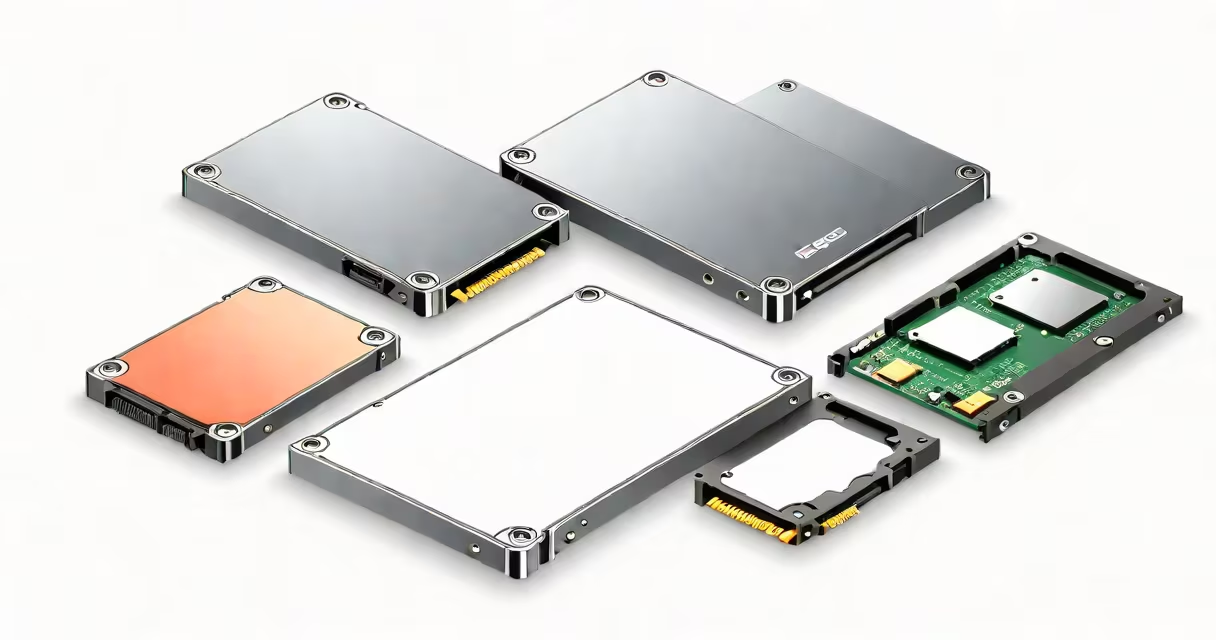
A solid state drive (SSD) uses flash memory with no moving parts, while a hard disk drive (HDD) stores data on spinning magnetic platters read by mechanical arms. SSDs deliver faster boot times, file access, and system responsiveness compared to HDDs, which are slower but offer lower cost per gigabyte.
SSDs store data electronically in NAND flash memory chips. When your computer requests a file, the controller accesses the data directly from the chip. This process takes milliseconds, with no physical movement involved.
HDDs rely on a rotating platter coated with magnetic material. A read/write head floats nanometers above the surface, scanning tracks to retrieve or write data. The time required for the head to reach the correct location on the spinning disk introduces latency.
For example, loading a game like Cyberpunk 2077 from an SSD takes under 10 seconds on a modern NVMe drive. On an older 7,200 RPM HDD, the same load can take 45 seconds or longer due to mechanical seek delays.
SSDs come in several form factors and interface types. M.2 NVMe drives connect via PCIe lanes and achieve speeds over 3,500 MB/s. SATA III SSDs max out around 600 MB/s. Traditional HDDs typically operate at 5,400 RPM or 7,200 RPM, with sustained transfer rates between 80-180 MB/s.
| Feature | SSD | HDD |
|---|---|---|
| Interface | M.2 NVMe, SATA III | SATA, SAS |
| Read Speed (typical) | 3,500 MB/s (NVMe) | 180 MB/s (7,200 RPM) |
| Write Speed (typical) | 3,000 MB/s (NVMe) | 150 MB/s (7,200 RPM) |
| Latency | ~0.1 ms | 2-8 ms |
| Power Draw | 2-5 watts | 6-8 watts |
SSDs have no moving parts, making them immune to damage from drops or vibrations. HDDs are vulnerable to mechanical failure if jostled during operation. A 2021 study by Backblaze analyzed over 100,000 drives and found that HDDs had a 2.5% annual failure rate, while SSDs showed less than 0.5%.
SSDs dominate in laptops, gaming PCs, and mobile devices where speed and portability matter. Modern operating systems like Windows 11 and macOS run faster on SSDs. Boot times drop from 30 seconds on HDDs to under 8 seconds on NVMe SSDs.
HDDs remain common in desktops, servers, and external backup drives. Their high capacity and low price make them ideal for storing large media libraries, archives, and long-term backups. A 4TB HDD costs about $100, while a similar-capacity SSD exceeds $300.
I replaced the 1TB HDD in my 2017 MacBook Pro with a 1TB Samsung 980 Pro NVMe drive. After installation, application launches dropped from 12-15 seconds to under 2 seconds. The system felt instantly more responsive, even though I hadn't changed any settings.
Many assume SSDs last forever. That's false. NAND cells wear out after ~3,000-5,000 program/erase cycles. Most consumer SSDs include wear leveling and over-provisioning to extend lifespan. A 1TB SSD rated for 600 TBW (terabytes written) can handle 200GB of daily writes for over 8 years.
Another misconception is that all SSDs are expensive. While premium NVMe drives cost more, SATA SSDs now sell for under $50 for 1TB. They provide a major speed boost over HDDs at a modest price. A 1TB SATA SSD is roughly 2.5x faster than a 7,200 RPM HDD in sequential reads.
Some users think HDDs are obsolete. They're not. For bulk storage, HDDs still lead in cost efficiency. A 10TB HDD costs $200; a comparable SSD exceeds $1,000. Enterprises use hybrid setups: SSDs for OS and applications, HDDs for cold data.
Use SSDs for primary drives: operating systems, programs, and frequently accessed files. Use HDDs for secondary storage: media, backups, and archival data. This combination balances speed, cost, and capacity.
When upgrading, prioritize a fast SSD for your boot drive. Even a budget SATA SSD improves performance more than any other hardware change. For storage-heavy workloads like video editing or database management, pair an SSD with a high-capacity HDD.