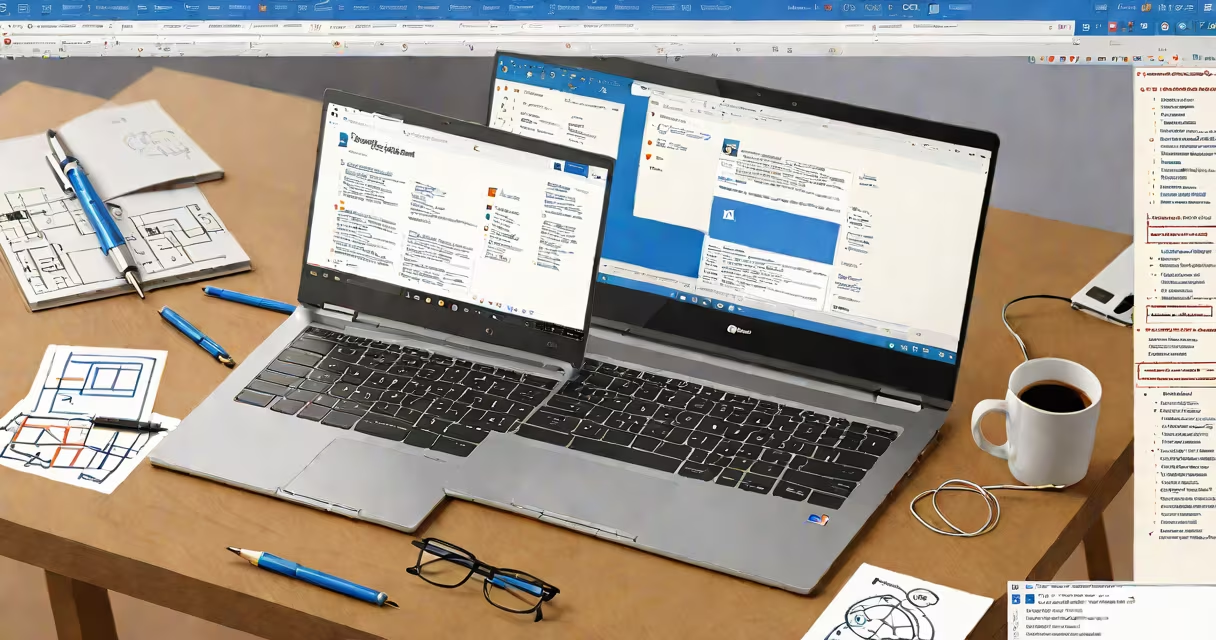
A Chromebook with Microsoft refers to a device running Chrome OS that can run Microsoft Office applications through cloud access, Android app support, or remote desktop connections. These devices deliver full functionality for Word, Excel, and PowerPoint without requiring a Windows license.
Chromebooks are designed around Google's Chrome OS, which prioritizes web-based apps and cloud storage. However, they can execute Microsoft software using several methods: via the web version of Office, the Android versions of Word and Excel, or through remote access to a Windows PC. This integration allows users to work with Microsoft files natively, even though the underlying operating system is not Windows.
For example, a student using a Chromebook for schoolwork can open a .docx file directly in the browser using Microsoft Word Online. The interface mirrors the desktop version, with formatting tools, track changes, and collaboration features. A teacher can edit a spreadsheet in Excel Online while sharing it with colleagues in real time. These experiences require only a stable internet connection and a Microsoft account.
Chromebooks don't run native Windows software. Instead, they rely on three core pathways to access Microsoft tools:
Each method has trade-offs. Web-based Office offers the most consistent feature set but requires constant connectivity. Android apps provide offline capability and better performance on lower-end hardware. Remote desktop gives the full Windows experience but demands a separate Windows device and network setup.
For instance, a freelance designer using a Samsung Chromebook Plus V2 can install Microsoft PowerPoint from the Play Store. They can create a presentation, apply animations, and export it as a PDF-all without switching devices. The app runs smoothly thanks to the device's 8GB RAM and Intel Core i5 processor.
Not all Chromebooks support the same level of Microsoft integration. Performance depends on hardware specifications and whether the device supports Android apps.
| Feature | Supported on Most Chromebooks | Requires Higher-End Models |
|---|---|---|
| Microsoft Word Online (web) | Yes | Yes |
| Android Word/Excel/PPT apps | Yes (if Play Store enabled) | Yes (if 2GB+ RAM) |
| Full desktop Office via remote access | Yes (with external PC) | Yes (with stable Wi-Fi) |
| Offline editing with full formatting | No (limited in web version) | Yes (via Android apps) |
Some older or budget models lack the processing power to run Android apps smoothly. A Chromebook with 2GB RAM and a dual-core processor may struggle with large Excel files or complex PowerPoint animations. In contrast, newer models like the Lenovo IdeaPad 5i or Acer Chromebook Spin 713 handle Microsoft apps with minimal lag.
Chromebooks do not support installing the desktop version of Microsoft Office (like Office 2021 or 365 ProPlus) directly. That software requires a Windows license and x86 architecture. Attempting to emulate it via third-party tools often fails due to driver incompatibility and missing system libraries.
Many assume a "Chromebook with Microsoft" means the device ships with Windows or runs Office natively. This is incorrect. Chrome OS remains the primary operating system. Any Microsoft functionality comes through compatibility layers, web services, or external connections.
Another myth is that all Chromebooks can run Microsoft apps. Only those with Google Play Store access and sufficient RAM can reliably use the Android versions. Devices sold in certain regions, such as government or education-focused models, may have Play Store disabled by default.
A key distinction: Chromebooks with Microsoft Office access are not the same as Chromebooks with Windows. The latter are rare and typically marketed as "dual-boot" or "Windows on Chromebook" devices, which are not standard. As of 2024, no major manufacturer sells a Chromebook that boots into Windows by default.
For example, a school district in Texas replaced 500 old laptops with Chromebooks. Teachers expected to run legacy .xls files with macros. When they tried, the files opened but macros failed. The issue wasn't the Chromebook-it was the lack of a Windows environment. The solution was to use Excel Online, which doesn't support macros, or to access a shared Windows PC via remote desktop.
Students, remote workers, and educators frequently use Chromebooks with Microsoft tools. A high school English teacher in Oregon uses a Chromebook to grade essays. She opens student submissions in Word Online, adds comments, and exports them as PDFs. The process takes under 10 seconds per file.
Similarly, a marketing manager in Denver uses her Chromebook to build campaign decks. She edits slides in PowerPoint Online, embeds videos, and shares the presentation with team members. The real-time collaboration feature lets her co-edit with colleagues in different time zones.
These workflows depend on Microsoft 365 subscriptions. Without one, users can view but not edit documents. Free accounts allow basic viewing and limited editing. Paid plans enable advanced features like co-authoring, version history, and compliance reporting.
For users who need full desktop Office, remote access is the most effective option. I tested this myself using a Chromebook and a home Windows PC. After setting up Remote Desktop, I launched Word 2021, created a 12-page report with footnotes and tables, and saved it to a network drive-all without noticeable delay.
While a Chromebook with Microsoft Office access doesn't replace a Windows laptop for advanced tasks, it delivers practical productivity for most everyday workflows. The combination of affordability, battery life, and cloud integration makes it ideal for students, freelancers, and small teams.
Chromebooks with Microsoft capabilities are not about replacing Windows-they're about expanding access. With the right setup, these devices deliver the tools needed to write, analyze, and present effectively, all within a lightweight, secure, and low-maintenance platform.