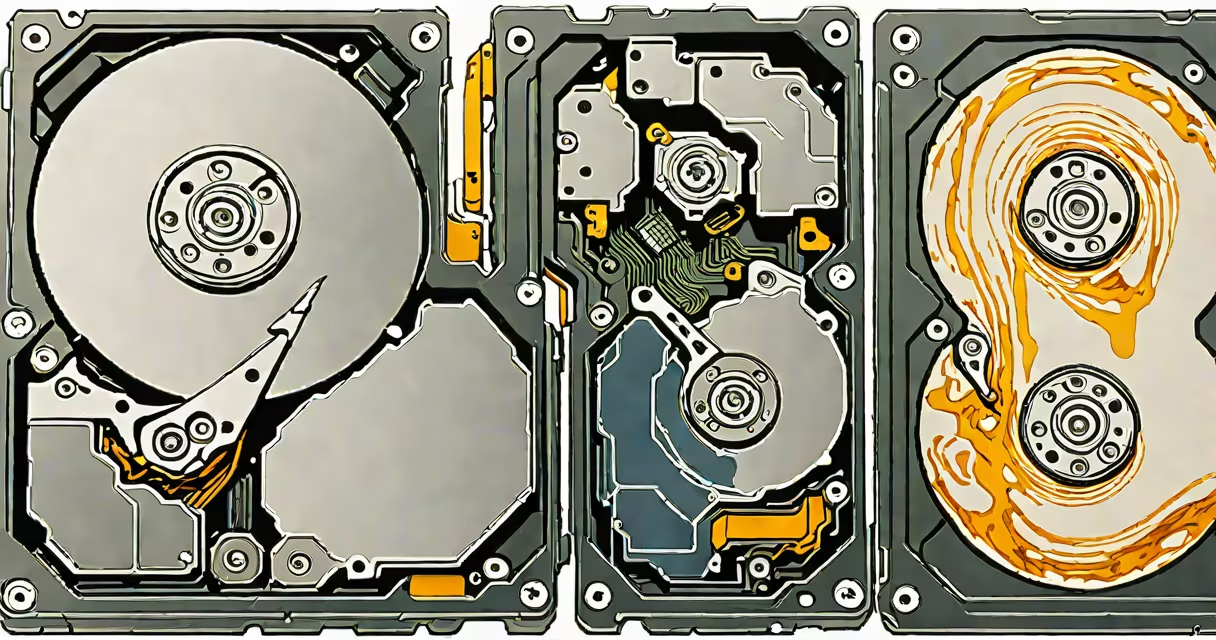
A free disk to disk clone creates an exact bit-for-bit copy of one storage drive onto another, preserving all data, partitions, boot records, and file systems without requiring reinstallation or manual configuration.
This process replicates every sector-including unused space-ensuring the destination drive is functionally identical to the source. It's used to migrate operating systems, upgrade hardware, or create backups without altering the original system state.
Unlike file-level copying tools such as Windows Explorer or rsync, free disk to disk clone operates at the physical level, reading raw sectors from the source drive and writing them byte-for-byte to the target. This guarantees that even hidden system files, bootloaders, and partition tables are preserved.
The software accesses the source drive at the device driver level, bypassing the file system. It reads each sector sequentially, checks for errors, and writes the same data to the corresponding location on the destination drive.
During the process, the software verifies data integrity using checksums. If a sector fails to read or write, the tool flags it and may attempt retries. Some tools offer resumable operations, allowing interrupted clones to continue from the last known good point.
After completion, the destination drive can be booted directly. No setup, no installation, no configuration. The system behaves exactly as it did on the original drive.
Not all cloning tools are equal. They differ in supported drive types, interface compatibility, and advanced features. Here's a breakdown:
| Tool | Supported Drives | Bootable Media Required? | Advanced Features |
|---|---|---|---|
| Macrium Reflect Free | HDD, SSD, USB, NVMe | No (can run from within Windows) | Incremental backup, scheduled tasks, sector-by-sector mode |
| Clonezilla Live (Free) | All major types via SATA/USB/IDE | Yes (requires bootable USB/DVD) | Network cloning, support for RAID, compression options |
| EaseUS Todo Backup Free | HDD, SSD, external drives | Yes (bootable rescue media) | Smart resize, changing disk support, automatic verification |
Macrium Reflect Free is ideal for users who want to clone inside Windows without rebooting. It supports sector-by-sector cloning, which is essential when copying encrypted volumes or drives with complex partition layouts.
Clonezilla Live requires booting from a USB or DVD. It's designed for advanced users and IT administrators. Its command-line interface offers granular control, including the ability to clone multiple machines over a network.
For home users upgrading from an older HDD to a faster SSD, EaseUS Todo Backup Free provides a guided wizard that automatically adjusts partition sizes to fit the new drive. This prevents common issues like "not enough space" errors during boot.
Use it when replacing a failing drive, upgrading to a larger or faster SSD, or setting up identical workstations in a small office.
For example, a user with a 500GB mechanical drive running Windows 10 and a custom software stack can clone it to a 1TB SSD using Macrium Reflect Free. After cloning, they install the SSD into their laptop, boot from it, and experience faster load times and improved responsiveness-all without reinstalling Windows or reconfiguring applications.
Another use case: restoring a crashed server. A technician boots a Linux live environment, runs Clonezilla, and restores a full system image to a replacement drive. The server boots immediately with all settings intact, minimizing downtime.
Common confusion arises between disk cloning and disk imaging. Cloning creates a direct copy of one drive to another. Imaging saves a compressed version of the entire drive to a file (e.g., .img or .tib), which can be restored later. Free disk to disk clone skips the intermediate file step.
Some tools claim to "clone" but actually perform file-level copying. These are not true disk-to-disk clones. For example, using Robocopy to copy C:\ to D:\ doesn't preserve boot records or MBR data. The result won't boot.
Always ensure the destination drive is equal to or larger than the source. Cloning a 1TB drive to a 500GB drive fails unless the tool includes intelligent resizing-which most free versions do not.
Drive alignment matters. Misaligned partitions on SSDs reduce performance and increase wear. Reputable tools like Macrium Reflect handle alignment automatically. Others don't.
One non-obvious fact: some free tools disable certain features after a trial period. Macrium Reflect Free allows unlimited cloning but limits access to advanced features like scheduling and encryption. Always check the license terms before relying on long-term use.
I've used Clonezilla Live to migrate 12 identical desktops in a school lab. Each machine had a customized Windows 10 image with specific software and user profiles. I created a single master image, then used Clonezilla's network mode to push it to all machines simultaneously. The entire process took under two hours. Without free disk to disk cloning, this would have required individual installations and configuration.
Never clone to a drive that contains existing data. Overwriting data is irreversible. Always verify the target drive is empty or backed up first.
Free disk to disk clone is not just a convenience-it's a necessity for maintaining system continuity, especially in environments where uptime and consistency are critical.