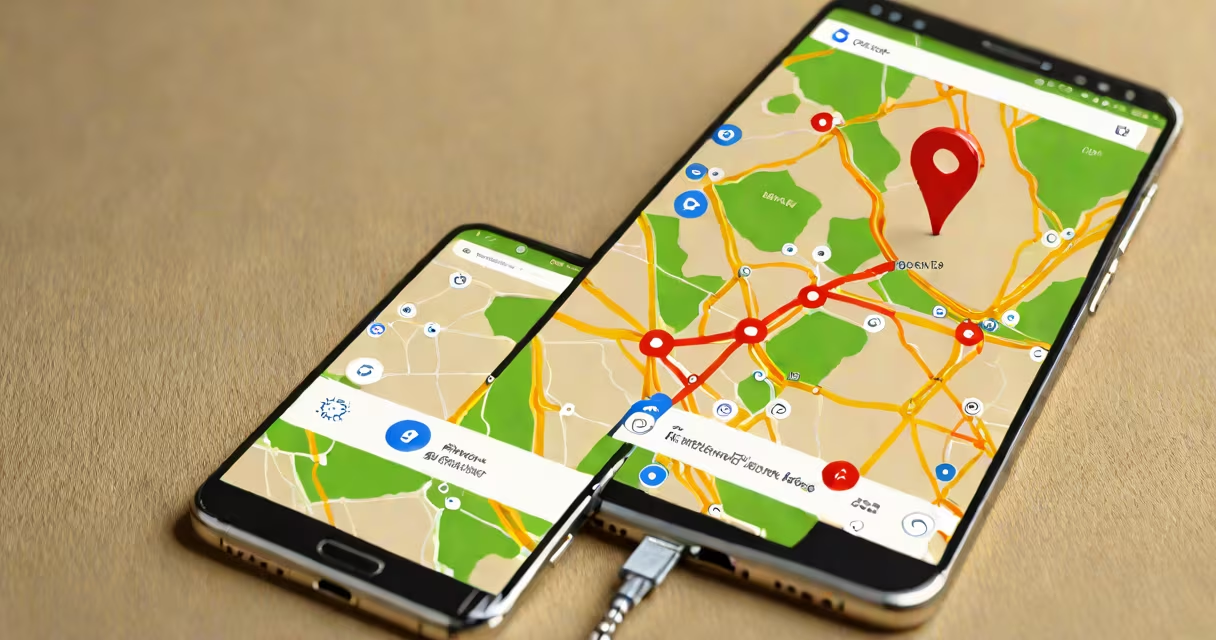
Use Google's Find My Device service to locate your lost Android phone by signing in to findmydevice.google.com from any web browser or another device. The tool shows your phone's last known location on a map, allows remote ringing, locking, or wiping, and works across all Android devices running Android 4.4 or later.
Find My Device is part of Google's system and relies on GPS, Wi-Fi, and cellular signals to determine your phone's position. It doesn't require a third-party app or prior setup beyond enabling location services and linking your phone to a Google Account. If your phone is powered off or offline, the system displays the last known location based on the most recent connection.
For example, if your phone was last seen at 3:17 PM near a coffee shop on Main Street, the map will show that spot. You can then call the store to check if someone turned it in. This feature works even if the SIM card is removed, as long as the device had internet access before going offline.
When you sign in to findmydevice.google.com, the system checks your Google Account's device list. If your lost phone appears in the list, it pulls the latest location data stored by the Android OS. Location updates happen automatically when the phone connects to the internet via Wi-Fi, mobile data, or Bluetooth.
The service uses a combination of GPS, cell tower triangulation, and nearby Wi-Fi networks to pinpoint your device. Accuracy varies: GPS gives the highest precision (within 5 meters), while cell tower and Wi-Fi methods can be accurate within 50-200 meters depending on network density.
If your phone is powered off or has no internet connection, the system still shows the last known location. For instance, a user in Seattle reported their phone was last seen at a bus stop in Capitol Hill. The device hadn't been online for 12 hours, but the map displayed the correct location based on the previous Wi-Fi connection.
Once you identify your phone's location, you can take four actions:
These actions are initiated through the web portal or the Find My Device app. The app runs in the background and activates when needed, even if the phone is locked.
| Action | Use Case | Time to Execute |
|---|---|---|
| Ring | Phone is nearby but silent | Instant |
| Lock | Phone is stolen or misplaced | 1-2 seconds |
| Wipe | Personal data exposure risk | 10-30 seconds |
| Location View | Tracking progress during search | Instant |
Many users assume Find My Device only works if the phone is on and connected. That's incorrect. The system stores the last known location, which is updated every 15-30 minutes when the device is online. If the phone was last seen at 9:00 AM, you can still see that location at 5:00 PM.
Another mistake is thinking the feature requires a paid subscription. It does not. Find My Device is free and included with every Google Account linked to an Android device. No additional apps or fees are required.
A less obvious issue: location services must be enabled on the phone. If you disabled location tracking before losing the device, the system cannot update the location. However, it still shows the last known position. Always enable location services before losing your phone.
In 2022, a user in Austin lost their Samsung Galaxy S21 after leaving it in a taxi. They accessed findmydevice.google.com from a friend's laptop. The phone showed a location near a shopping center. The user selected "Ring" and heard the alarm from inside a parked car. A security guard confirmed seeing a phone on the passenger seat.
After verifying ownership, the user locked the device remotely and contacted police. The phone was returned the next day. The key factor was that the phone had been online earlier that morning and the location data was preserved.
As noted by Google's support documentation, "Find My Device works best when the device is powered on and connected to the internet." But even offline, the last known location remains available for up to 72 hours.
If Find My Device doesn't show your phone, verify that:
If the device is offline for more than 72 hours, the location data may be purged. In such cases, contact your carrier to check if the device was used on their network. Some carriers offer IMEI-based tracking, though results vary.
As a final note, always enable Find My Device before losing your phone. Go to Settings > Security > Find My Device and turn it on. This takes under a minute and prevents future panic.
Knowing how to locate your lost Android phone reduces stress and increases recovery chances. Use Google's official tools - they're free, reliable, and work across all Android models.