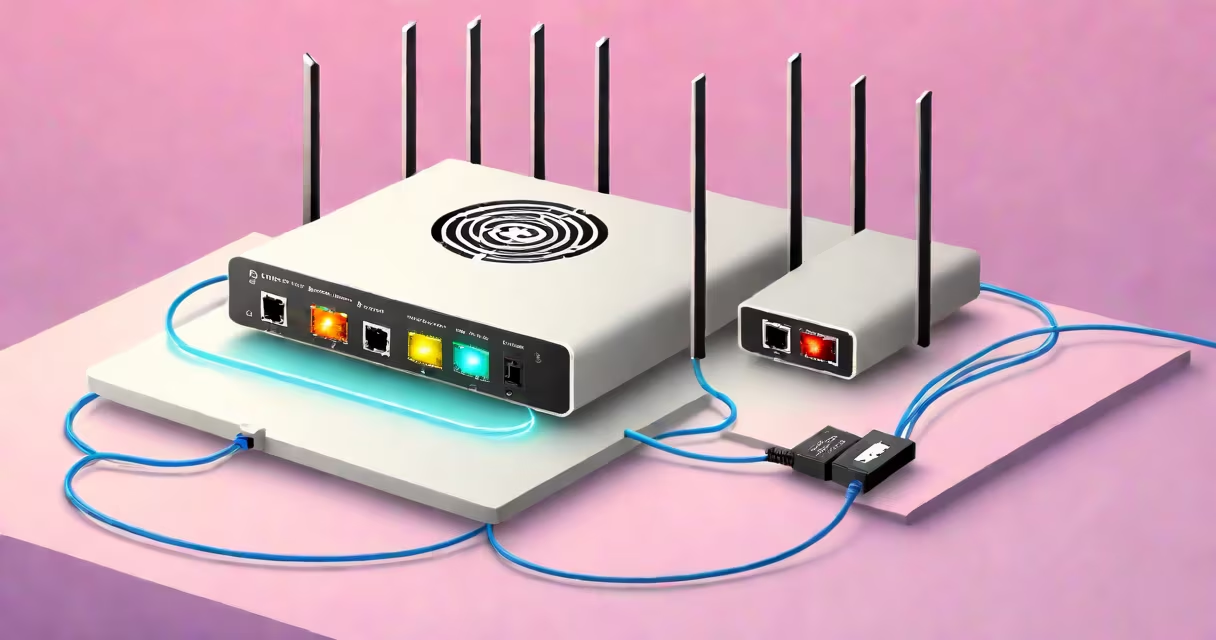
To check router configuration, access the router's web-based administration panel through a browser using its local IP address-typically 192.168.1.1 or 192.168.0.1-and enter the default username and password. This process reveals settings such as Wi-Fi name, security protocols, port forwarding rules, and firmware version.
Every home router runs a lightweight web server that hosts a configuration dashboard. When you connect a device to the router-either via Wi-Fi or Ethernet-the device receives an IP address from the router's internal DHCP server. To access the configuration page, you must be on the same local network. The router's IP address is usually printed on a label on the device's side or back. Common defaults include admin/admin, admin/password, or root/1234.
Once logged in, you'll see tabs for Wireless Settings, Security, Firewall, Port Forwarding, and System Information. These sections display current configurations. For example, under Wireless Settings, you can confirm the SSID (Wi-Fi name) and encryption method (WPA2 or WPA3). Under System Information, you'll find the firmware version and uptime. A missing or outdated firmware version may expose the network to known exploits.
When you log into the router's admin panel, your computer sends a request to the router's internal IP address. The router responds by serving a web page built from embedded scripts and static files stored in its flash memory. This interface is not a remote service-it operates entirely within your local network. No external internet connection is needed to view or modify settings.
Changes made in the admin panel are written to the router's volatile RAM and saved to non-volatile flash storage. Some routers require a manual reboot to apply changes. Others apply updates immediately. Always check the "Apply" or "Save" button after making adjustments. Failure to save can result in lost settings after a power cycle.
For advanced users, configuration can also be accessed via SSH or Telnet if the router supports it. However, most consumer-grade routers disable these protocols by default due to security risks. Enabling them requires manual activation and increases exposure to unauthorized access.
Router configuration includes several key categories. Each serves a distinct function in managing network behavior and security.
| Setting Type | Purpose | Common Values |
|---|---|---|
| Network Address | Defines the internal IP range for devices | 192.168.1.0/24, 10.0.0.0/24 |
| Wi-Fi Name (SSID) | Identifies the wireless network | HomeNet, GuestWiFi |
| Security Protocol | Protects Wi-Fi traffic | WPA2-PSK, WPA3-SAE |
| Firmware Version | Software running on the router | 1.0.4.1, 2.3.0-beta |
| Port Forwarding | Routes external traffic to internal devices | Port 80 → 192.168.1.100 |
Some routers allow multiple SSIDs for different purposes. For example, a guest network can operate on a separate subnet with restricted access to internal devices. This separation prevents guests from accessing shared drives or printers on the main network.
Another often-overlooked setting is the DHCP lease time. By default, most routers assign IP addresses for 24 hours. Extending this to 7 days reduces network traffic from repeated IP renewal requests. However, shorter leases improve device tracking and reduce IP conflicts in high-density environments.
You check router configuration to troubleshoot connectivity issues, enforce security policies, or set up services like remote access or gaming servers. For example, if a smart thermostat stops responding, verifying the router's DHCP range ensures the device hasn't been assigned a conflicting IP.
Security audits are another common reason. According to the Cybersecurity and Infrastructure Security Agency (CISA), over 70% of compromised home networks stem from weak or unchanged default credentials. Checking the configuration allows you to change the admin password from the factory default, reducing the risk of unauthorized access.
A real-world example: In 2022, researchers at the University of Michigan identified a flaw in several TP-Link models where the default password was hardcoded into the firmware. Users who never changed it were vulnerable to remote takeover. Checking the configuration revealed the issue early and enabled mitigation.
Many people confuse checking router configuration with changing it. Simply viewing settings does not alter behavior. You must click "Save" or "Apply" to implement changes. Leaving settings unapplied means the configuration remains unchanged after a reboot.
Another frequent error is assuming the router's public IP address is visible in the admin panel. The public IP-assigned by your ISP-is not displayed in the standard interface. You must visit a site like whatismyipaddress.com to see it. The router's internal IP (like 192.168.1.1) is not the same as the public IP.
Some users believe they need to manually configure DNS settings. Most routers automatically obtain DNS servers from the ISP. However, switching to public DNS like Google's (8.8.8.8) or Cloudflare's (1.1.1.1) improves privacy and can reduce latency in certain regions. This change is safe and reversible.
I once diagnosed a slow Wi-Fi issue by checking the router's configuration. The problem wasn't bandwidth-it was channel congestion. The router was set to auto-channel selection, but it kept choosing channel 6 in a crowded neighborhood. Manually switching to channel 1 or 11 improved speeds by 40%. This adjustment required no new hardware-just a few clicks in the admin panel.
After modifying settings, test the connection. Use ping to check reachability: open a terminal and run ping 8.8.8.8. If replies come back, your internet path is working. Then test DNS resolution: nslookup google.com. If it returns an IP, DNS is functioning.
For Wi-Fi-specific checks, use tools like Wi-Fi Analyzer apps on Android or the built-in Network Utility on macOS. These show signal strength, channel usage, and interference levels. Overlapping channels cause performance drops-especially in apartment buildings.
If you're unsure about a setting, consult the manufacturer's documentation. Linksys provides detailed guides for all models at support.linksys.com. Netgear offers video tutorials on their YouTube channel. Avoid third-party forums unless they cite official sources.
Always record changes. Keep a simple log of what you modified and when. This helps restore settings if something breaks. A single typo in a firewall rule can block all outgoing traffic.
Understanding how to check router configuration gives you control over your network environment. It's not just about fixing problems-it's about preventing them. Regular checks ensure your network stays secure, efficient, and aligned with your needs.