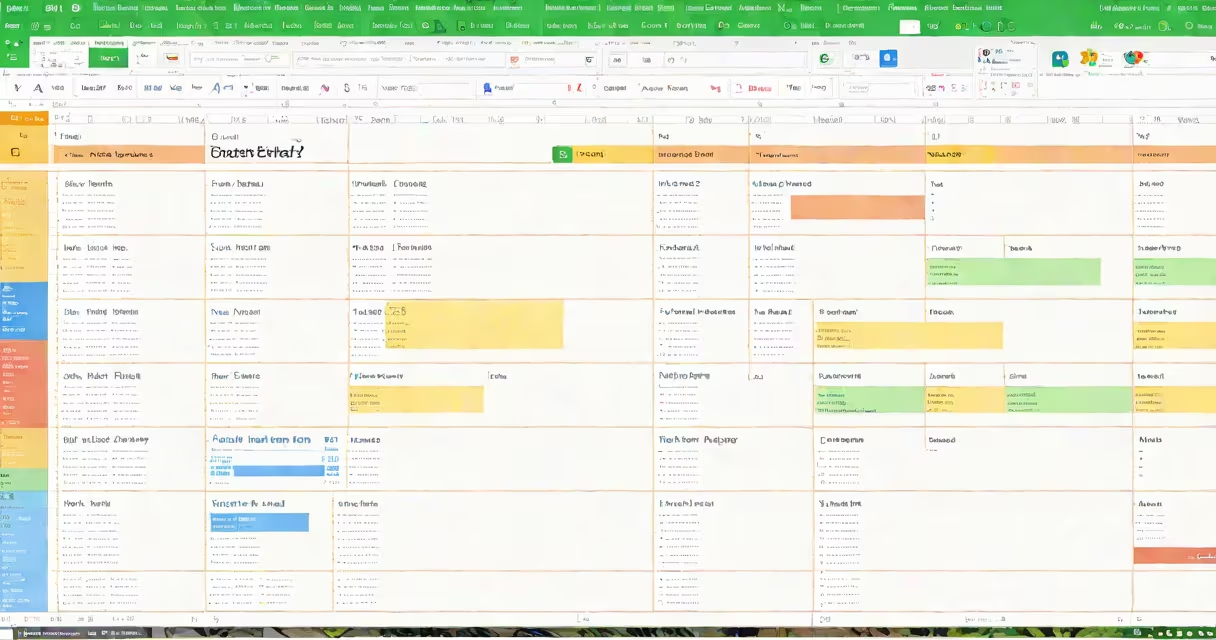
A monthly bill tracker template in Google Sheets is a customizable spreadsheet designed to monitor recurring payments, track due dates, and record actual payments. It uses built-in functions like IF, DATE, and SUMIFS to automate balance updates and show upcoming or overdue bills. This tool reduces manual entry and prevents missed payments.
These templates are built in Google Sheets, a free web-based spreadsheet application. They support real-time collaboration, automatic saving, and mobile access via the Google Sheets app. Users can set up alerts using conditional formatting or linked Google Calendar events. The most effective templates include columns for bill name, amount, due date, payment status, and notes.
For example, a user tracking rent ($1,200), internet ($75), and utilities ($150) sets up a sheet with a "Due Date" column using the DATE(2024, 4, 5) function. A formula in the "Status" column checks if today's date exceeds the due date and marks it as "Overdue." When the user pays the rent, they update the "Paid?" column to "Yes," and the total owed decreases automatically.
The core function of a monthly bill tracker template is to reduce cognitive load. Instead of remembering every due date, users input data once and let the system calculate totals, flag issues, and generate summaries. Formulas handle tasks like summing all bills due this week or counting how many remain unpaid.
Conditional formatting applies color codes based on criteria. For instance, red highlights bills due within three days, yellow for those due in four to seven days, and green for paid or upcoming bills. These visual cues help users prioritize actions quickly.
Advanced templates integrate with Google Apps Script to send email reminders or sync with Google Calendar. A user who sets up a script can receive a notification five days before a $200 car insurance payment is due. This automation reduces the risk of late fees, which average $30 per incident according to the Consumer Financial Protection Bureau.
Templates vary in complexity and functionality. Basic versions offer columns for name, amount, due date, and status. Intermediate models include filters, pivot tables, and charts. Advanced versions feature automation, custom dashboards, and integration with bank feeds via Google Sheets' API.
| Type | Features | Best For |
|---|---|---|
| Basic | Manual entry, due date column, status flags | First-time users, simple budgets |
| Intermediate | Formulas for totals, conditional formatting, filterable views | Users tracking 10-20 bills |
| Advanced | Google Apps Script, calendar sync, dashboard with graphs | Freelancers, families, or those managing multiple accounts |
One key difference between templates is whether they rely on manual input or automation. Manual templates require users to enter each bill manually. Automated templates pull data from connected services, such as linking to a bank account via Plaid or importing CSV exports from utility providers.
Free templates from Google Workspace Marketplace often include privacy safeguards. They don't collect user data unless explicitly granted. The FTC warns against third-party templates that request access to sensitive information without clear purpose. Always review permissions before enabling a template.
Many assume that a monthly bill tracker template requires advanced coding skills. This is false. Most templates work with standard Google Sheets functions. Even users with minimal spreadsheet experience can customize colors, rename columns, and adjust due dates without touching code.
Some users think templates must be perfect from the start. That's not necessary. Start with a basic version, then refine it over time. I built my first version in under 15 minutes using a template from the Google Sheets Gallery. I added a "Notes" column later to log phone call references with service providers.
To create a functional template:
=TODAY() in a cell to reference current date.=AND(DATE(YEAR(TODAY()), MONTH(TODAY()), DAY(TODAY())) >= D2, D2 <> "") to flag overdue bills.=SUMIF(E:E, "No", B:B) to total unpaid bills.After setup, test the template by entering a past-due bill. The conditional format should turn the row red. If not, check the formula syntax and ensure cells are formatted as dates.
Once working, share the file with family members or a financial advisor. Permissions can be set to "View Only" or "Comment" to prevent accidental edits. Use the "Version History" feature to restore previous states if needed.
For ongoing maintenance, update the template monthly. Clear old data, reset status fields, and verify due dates. This ensures accuracy and prevents confusion during tax season or audits.
Use a monthly bill tracker template Google Sheets to gain clarity on spending patterns. Track 12 months of data to identify seasonal spikes in utility costs or subscription usage. Compare actual vs. planned spending using a comparison column. This insight helps adjust budgets and avoid overspending.
When selecting a template, prioritize ones with clear instructions and documented formulas. Avoid templates that require complex scripts unless you're comfortable editing Apps Script. The Federal Trade Commission recommends reviewing user ratings and checking for recent updates to ensure compatibility with current Google Sheets features.