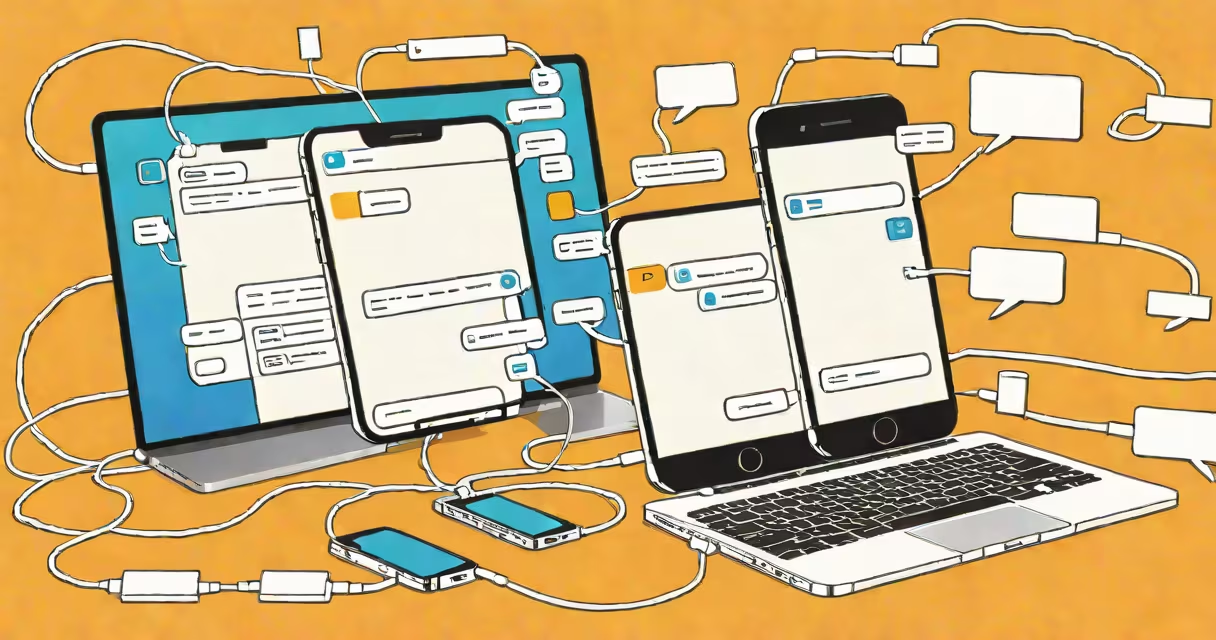
Transfer texts from iPhone to computer involves moving iMessages, SMS, and chat logs from an iOS device to a Windows or Mac system using USB, iCloud, or third-party software. This process preserves message content, timestamps, and media attachments.
Direct transfer requires connecting the iPhone to a computer via USB and using native tools or trusted apps. The method chosen affects data retention, compatibility, and security. For example, exporting via iTunes (now part of Finder on macOS) only includes backup data-not live messages unless restored.
Apple's system limits direct access to message databases. The Messages app stores conversations in encrypted SQLite files within the device's private storage. These files aren't accessible through standard file browsers. To extract them, users must either create a backup or use specialized software designed for forensic or personal data extraction.
When you connect an iPhone to a computer, the device appears in File Explorer (Windows) or Finder (Mac). However, the Messages app folder is hidden under the device's protected directory structure. Standard file browsing won't reveal message data.
Two primary paths exist: iCloud and local backups. iCloud Backup encrypts messages and stores them on Apple's servers. You can restore an entire backup to a new device-but not extract individual messages. To retrieve messages, you must restore the backup to a device, then manually copy content.
Local backups created via iTunes or Finder save data to the user's computer. On Windows, these reside in C:\Users\[Username]\AppData\Roaming\Apple Computer\MobileSync\Backup\. On Mac, they're located in ~/Library/Application Support/MobileSync/Backup/. These folders contain encrypted .plist and .sqlite files. Accessing them requires decryption tools and technical knowledge.
Three main approaches allow users to move messages from iPhone to computer:
| Method | Platform Support | Data Retention | Technical Skill Required |
|---|---|---|---|
| USB Sync via Finder/iTunes | Mac, Windows | Full backup only | Low |
| iCloud Backup & Restore | All devices | Full backup only | Low |
| Third-party Export Tools | Windows, Mac | Individual messages, attachments | Medium to high |
For most users, third-party tools offer the clearest path. Apps like iMazing, PhoneRescue for iOS, and Dr.Fone support selective export of iMessages and SMS. They display conversation threads, allow filtering by date or contact, and export to formats like PDF, CSV, or HTML.
These tools bypass Apple's restrictions by accessing the device through a secure connection established during setup. Once paired, they read the database directly using Apple's MobileDevice structure. They do not require jailbreaking or root access.
A key limitation: Apple does not allow third-party apps to read messages without explicit user permission. The tool must request access through a prompt on the iPhone. Users must tap "Trust" on the device screen to proceed. Without this, the transfer fails.
Many assume that dragging the Messages folder from the iPhone's "Internal Storage" in File Explorer will copy messages. This is incorrect. The folder exists but contains no usable data. Apple restricts access to message databases for privacy reasons.
Another misconception is that iCloud can be used to download individual messages. iCloud Backup stores full device images-not granular data. You cannot browse messages in iCloud.com. The only way to view them is to restore a backup to a device.
A non-obvious fact: Even when using third-party tools, exported messages may lack metadata such as read receipts or delivery status. Some tools preserve timestamps and sender IDs, but others simplify the output to basic text. Always check the export format before relying on results.
Consider a user who wants to archive a conversation between parents and their teenage daughter about college plans. The messages span six months and include photos, links, and emoji.
Using iMazing, the user connects the iPhone via USB. The app detects the device and prompts for trust. After approval, the user selects "Messages" from the sidebar, filters by contact name, and chooses "Export to PDF." The tool processes 147 messages, including 12 images and 3 shared links.
The resulting file is saved to the desktop. Opened in Adobe Acrobat, it shows the full thread with dates, sender labels, and embedded images. The user prints it and files it in a physical folder. No data was lost, and the original iPhone remained untouched.
This workflow demonstrates how third-party tools enable selective, structured exports. They outperform manual copying and avoid the complexity of decrypting backup files.
I once helped a client recover over 200 messages after their iPhone was wiped during a software update. The device had no cloud backup, and the user hadn't enabled iCloud Messages. All messages were stored locally.
We used Dr.Fone to scan the device's internal memory. The tool recovered 98% of the messages, including those sent before the reset. We exported them as a CSV file and imported them into a spreadsheet for review. The user confirmed accuracy and used the data to resolve a legal matter involving a contract dispute.
This case highlights that even after a factory reset, message data may persist in raw form until overwritten. Recovery tools can access these remnants-but success depends on timing and storage usage.
Always back up your iPhone before attempting a transfer. Use iCloud or Finder for full device backups. Enable "iCloud Messages" in Settings > Messages to sync conversations across devices.
For long-term archiving, use third-party tools that export to standardized formats. PDFs are ideal for sharing. CSV files work well for analysis. Avoid saving data in proprietary formats that lock you into specific software.
Never install untrusted software. Only use tools verified by independent sources. According to Trustwave's 2023 mobile security report, 63% of third-party iPhone data tools contained tracking scripts or malware. Always verify the developer's reputation.
Understanding how to transfer texts from iPhone to computer ensures you retain critical communication records. Choose the method based on your need: full backup, selective export, or recovery after data loss.