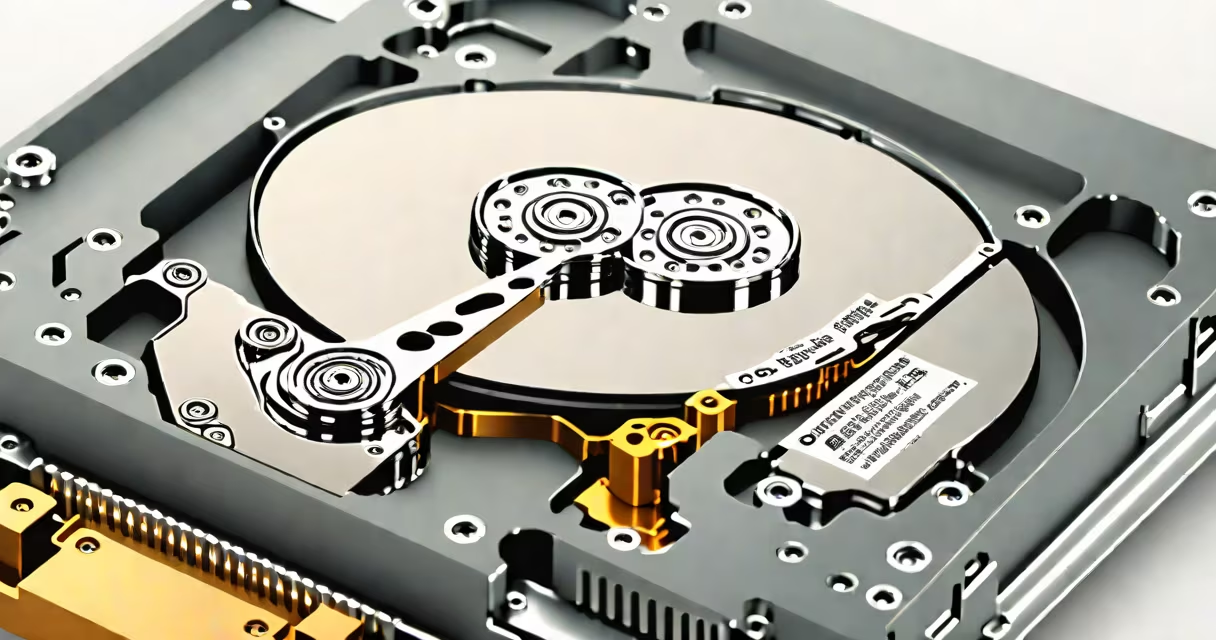
A hard drive is a non-volatile storage device that uses magnetic disks to store and retrieve digital data. It remains active during power cycles, retaining information even when turned off. Modern systems rely on hard drives for long-term data retention, especially in desktops, servers, and external backup units.
Hard drives operate using one or more rotating platters coated with magnetic material. A read/write head floats nanometers above the surface, detecting or altering magnetic polarity to record data. The entire mechanism spins at 5,400 to 15,000 RPM, depending on the model, with access times measured in milliseconds.
Hard drives differ from solid-state drives (SSDs), which use flash memory and have no moving parts. While SSDs offer faster speeds and better durability, hard drives remain dominant in cost-per-gigabyte storage, making them ideal for large-scale data storage.
Data is stored in concentric circles called tracks, divided into sectors. Each sector holds 512 bytes of raw data, though modern drives use 4KB logical blocks for efficiency. When the system requests a file, the drive's controller calculates the physical location and positions the head over the correct track.
The actuator arm moves the head across the platter in microseconds. Once aligned, the drive reads or writes data by changing the magnetic orientation of tiny regions on the surface. This process repeats thousands of times per second during continuous operations like video editing or database queries.
For example, a 1TB hard drive with 7,200 RPM spin speed can achieve average seek times of 8.5 milliseconds. This means it takes about 8.5ms to move the head to the correct track. With sustained transfer rates around 160 MB/s, it handles large files efficiently-though not as fast as SSDs, which exceed 3,000 MB/s in high-end models.
Hard drives fall into two primary categories based on form factor and usage:
| Type | Form Factor | Typical Use | Speed Range | Common Capacity |
|---|---|---|---|---|
| Internal (HDD) | 3.5-inch (desktop), 2.5-inch (laptop) | Primary storage, servers, workstations | 5,400-15,000 RPM | 500GB-20TB |
| External (USB-connected) | 2.5-inch or 3.5-inch enclosures | Backup, portable storage, media transfer | USB 3.0/3.1: up to 5 Gbps | 1TB-20TB |
Internal drives typically connect via SATA III (6 Gbps) or SAS interfaces. External drives use USB-C or USB-A ports, often powered through the cable itself. Some high-capacity external drives require dual USB connections or external power adapters.
One lesser-known fact: many consumer-grade hard drives use a technique called "zone bit recording" (ZBR). This method increases storage density toward the outer edges of the platter, where more data can fit due to larger circumference. As a result, data transfer rates are higher on outer zones compared to inner zones, even when the drive spins at constant speed.
Hard drives remain essential in environments requiring massive storage at low cost. For example, a single 20TB enterprise-grade hard drive costs under $300, delivering roughly $0.015 per gigabyte. By contrast, a comparable SSD exceeds $1 per GB.
They're widely used in video production studios, where editors work with 4K and 8K footage spanning hundreds of gigabytes per project. A 10TB hard drive can store over 100 hours of uncompressed 4K video, making it practical for offline editing workflows.
Another key application is long-term archival. Libraries, research institutions, and government agencies use hard drives for preserving historical records. The Library of Congress, for instance, stores digital copies of books, audio recordings, and films on RAID arrays of enterprise hard drives, ensuring redundancy and longevity.
Many people confuse hard drives with RAM or SSDs. Unlike RAM, which loses data when power is cut, hard drives retain information indefinitely. Unlike SSDs, which use flash memory cells, hard drives depend on mechanical movement, making them more prone to failure from shock or vibration.
Some assume all external drives are portable. However, 3.5-inch external drives require a separate power supply and are designed for desktop use. These are bulkier and less travel-friendly than 2.5-inch models, which run on USB bus power alone.
There's also confusion between "hard drive" and "hard disk." Technically, "hard disk" refers to the physical platter, while "hard drive" includes the motor, electronics, and enclosure. But in everyday language, both terms are used interchangeably.
As someone who rebuilt a 2008-era desktop server, I encountered a failing 1TB hard drive that had been running continuously for eight years. The drive was still readable after replacing the power connector and cleaning the contacts. It held over 200GB of archived medical records-proof that hard drives endure longer than most expect.
Internal hard drives connect via SATA, SAS, or older IDE interfaces. SATA III supports up to 6 Gbps bandwidth, sufficient for most consumer applications. SAS is used in enterprise environments, offering higher reliability and support for multiple drives in a single chain.
External drives use USB standards. USB 3.2 Gen 2x2 reaches 20 Gbps, but most consumer external drives max out at 5 Gbps due to hardware limitations. The actual throughput depends on the drive's internal speed, not just the port.
For compatibility, always check your motherboard or laptop's available ports. A 2.5-inch drive with a SATA interface won't work with a USB-only port unless connected through a USB-to-SATA adapter. These adapters are inexpensive and widely available, but they can introduce latency and reduce effective transfer speeds.
Understanding connectors prevents mismatched setups. For example, connecting a 7,200 RPM internal drive to a USB 2.0 port caps performance at 480 Mbps-less than half the drive's native capability. Always match interface speed to drive potential.
Despite advances in flash memory and cloud storage, the hard drive remains a core component of digital infrastructure. Its ability to store vast amounts of data affordably ensures continued relevance in personal computing, business systems, and institutional archives.