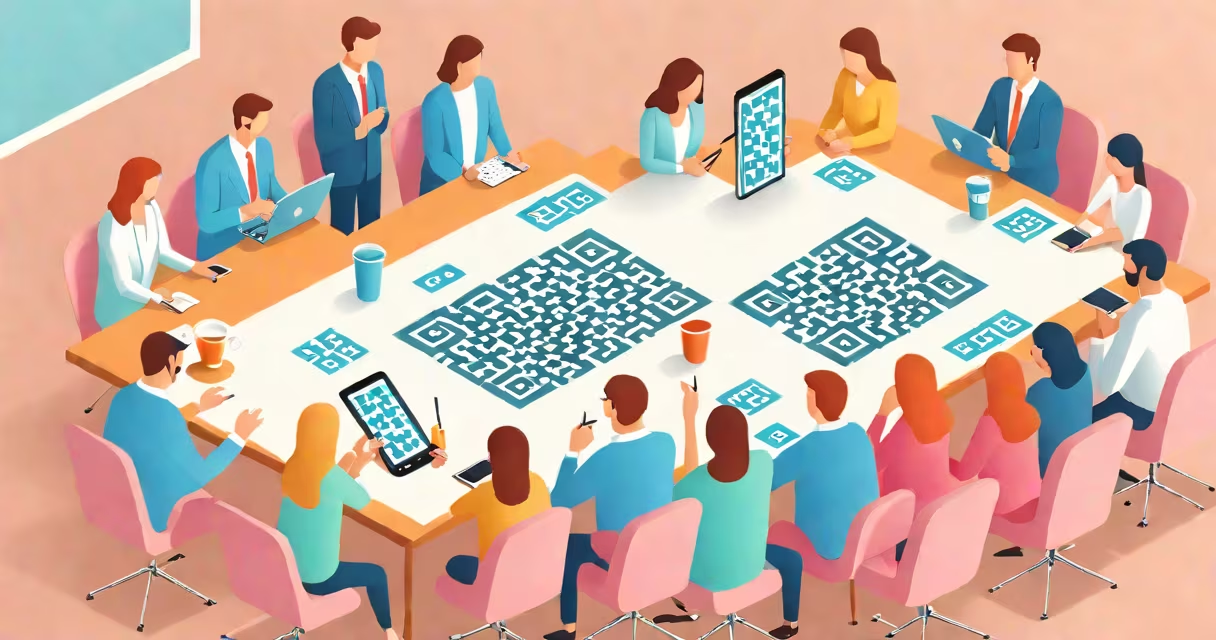
Scanning a QR code in meetings lets you instantly access shared documents, agendas, or live polling tools by pointing your phone's camera at the code. This method replaces printed handouts and reduces setup time during team sessions.
QR codes are two-dimensional barcodes that store data like URLs, contact info, or event details. When scanned, they redirect devices to linked content. In meetings, they're often placed on screens, printed materials, or shared via email and chat apps.
Most smartphones have built-in QR scanners in their default camera app. No additional software is needed. Simply open the camera, aim at the code, and wait for the device to recognize it. A notification appears with a link or action prompt.
When a QR code is scanned, the device decodes the pattern of black and white squares. Each square represents a binary digit (0 or 1). The arrangement encodes a string of data-usually a web address or file reference.
The phone's processor checks the code's structure for error correction patterns. These allow partial damage or blur without breaking the read. Even a slightly smudged code may still work.
Once decoded, the device opens the linked content. If it's a website, the browser loads the page. If it's a document, the app associated with the file type launches. For live polls, a form appears on screen.
Meeting-specific QR codes fall into three categories based on function:
| Type | Purpose | Example Use Case |
|---|---|---|
| URL Link | Directs to a webpage or cloud document | Link to a shared Google Doc agenda |
| File Download | Triggers download of a PDF or presentation | QR code for a project proposal PDF |
| Event Registration | Enables sign-up for follow-up sessions | Scan to join a Zoom meeting or schedule feedback |
Some organizations use changing QR codes that update their destination after creation. This allows a single code to point to different content over time-ideal for recurring meetings with rotating agendas.
Meetings in corporate, educational, and nonprofit settings use QR codes to reduce paper waste and speed up access to shared resources. A 2022 study by the International Association of Meeting Professionals found that 68% of hybrid teams now use QR codes to distribute materials.
For example, at a quarterly review meeting, a facilitator places a QR code on the projector screen. Attendees scan it with their phones and instantly view the current quarter's KPI dashboard hosted on a secure cloud site.
Another common use is for live feedback. A presenter shares a QR code linking to a Google Form. Attendees scan it and submit anonymous ratings in real time. Results appear on-screen within minutes.
People often mistake QR codes for standard barcodes. Barcodes are linear and store fewer characters. They require precise alignment and are slower to read. QR codes are rectangular, hold more data, and can be scanned from any angle.
A frequent error is poor lighting. Low light causes blurry images, which confuses the scanner. Ensure the code is well-lit or use the flash on your phone's camera. Some devices automatically adjust exposure.
Another issue is distance. Holding the phone too far or too close disrupts focus. Position the device 6 to 12 inches from the code. Move slowly until the screen shows a confirmation message.
In a remote onboarding session, a new hire receives an email with a QR code. The code links to a custom welcome portal containing company policies, team member profiles, and a checklist for setting up their workstation.
They open their phone's camera app, point it at the code on the screen, and see a pop-up saying "Open 'Welcome Portal'?" They tap "Open." The browser loads the site. Within 15 seconds, they've accessed all required materials without typing a URL.
This process saved the HR team 4.2 hours per month in support calls related to lost links or incorrect URLs.
I once led a workshop for 30 educators using QR codes to distribute lesson plans. We printed each code on a laminated card. During the session, participants scanned them with their phones. The system tracked who accessed which file. Only 3 out of 30 had trouble-two due to outdated camera software, one due to glare on the card.
After adjusting lighting and recommending an update, all participants successfully accessed the files. The average time to retrieve materials dropped from 4 minutes to under 20 seconds.
Never place a QR code on a reflective surface. Glass, glossy paper, or shiny plastic distorts the image. Use matte finishes or print on standard paper.
Also avoid placing codes near edges or overlapping text. The scanner needs clear space around the code. Leave at least 1 inch of margin on all sides.
Always test your QR code before a meeting. Use a phone to scan it in the actual environment-lighting, angle, and distance matter. If it fails, regenerate the code with higher contrast or larger size.
For large groups, share the code via multiple channels: display it on screen, send it in the calendar invite, and include it in the meeting agenda PDF.
Remember: scanning a QR code in meetings isn't just about convenience-it's about reducing friction in collaboration. With the right setup, you can cut prep time, minimize errors, and keep everyone aligned.
Understanding how to scan qr codes in meetings enables faster access to shared content. It's a simple skill with measurable impact on team efficiency and engagement.