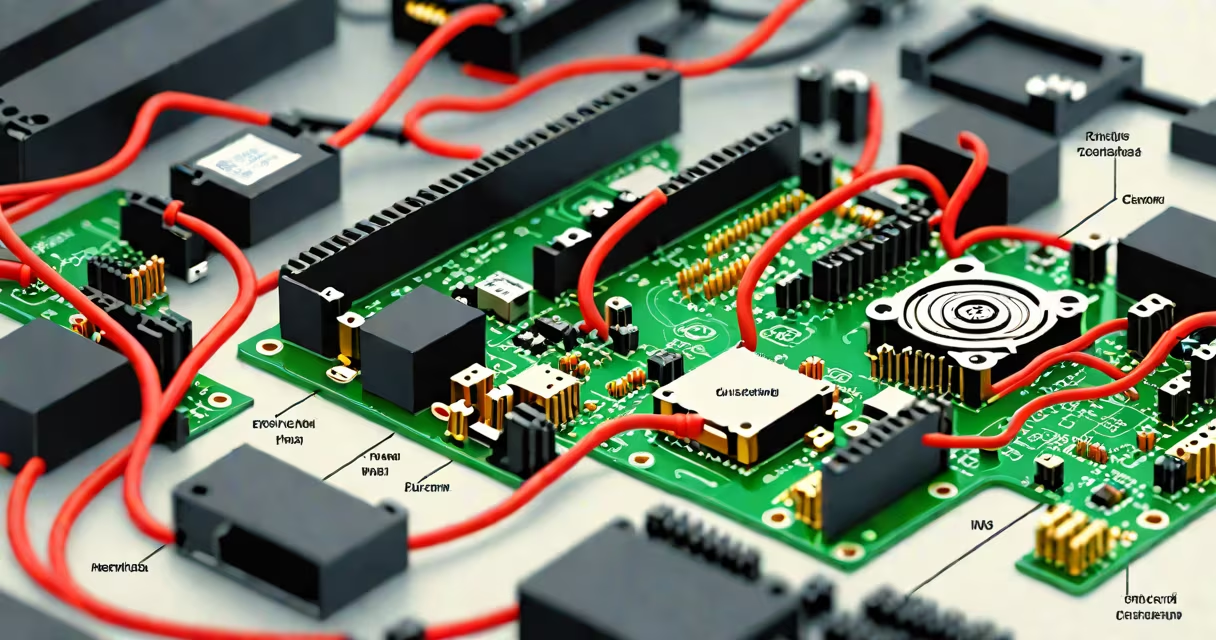
SATA (Serial Advanced Technology Attachment) is a high-speed interface standard used to connect storage devices such as hard disk drives (HDDs), solid-state drives (SSDs), and optical drives to a computer's motherboard. It replaced the older Parallel ATA (PATA or IDE) system due to faster data transfer rates, simpler cabling, and better scalability.
SATA operates using a serial communication method, sending data one bit at a time over a dedicated channel. This design reduces electrical interference and allows for longer, thinner cables compared to the wide, flat ribbon cables used by PATA. The result is improved airflow inside the case and easier cable management.
The latest version, SATA III, supports a maximum theoretical transfer rate of 6 Gbps (gigabits per second), which translates to about 600 MB/s (megabytes per second) in practical terms. This speed is sufficient for most consumer-grade HDDs and entry-level SSDs, though newer NVMe SSDs exceed SATA limits.
SATA uses a point-to-point connection between the storage device and the motherboard controller. Each SATA port on the motherboard connects directly to one device, eliminating the bus contention issues common in older shared-parallel systems. This direct link improves reliability and simplifies device configuration.
Data travels through a seven-wire cable: four for power (typically from the PSU), and three for signaling-two for receiving data and one for transmitting. The signaling uses differential pairs to reduce noise and maintain signal integrity over distance. A typical SATA cable is no longer than 1 meter, limiting physical reach but ensuring stable performance.
When a computer boots, the BIOS or UEFI firmware detects SATA-connected devices during the POST (Power-On Self-Test). The operating system then assigns a drive letter (e.g., C:\) and mounts the file system for access. Modern systems support hot-plugging for external SATA devices via eSATA ports, though internal SATA connections typically require system shutdown for safe removal.
SATA has evolved through three main revisions, each increasing bandwidth and improving efficiency:
| Version | Max Transfer Rate | Real-World Throughput | Use Cases |
|---|---|---|---|
| SATA I | 1.5 Gbps | ~130 MB/s | Legacy systems, basic HDDs |
| SATA II | 3.0 Gbps | ~280 MB/s | Older SSDs, mainstream HDDs |
| SATA III | 6.0 Gbps | ~550 MB/s | Modern SSDs, high-performance HDDs |
Despite the name, SATA III does not double the speed of SATA II-it increases bandwidth by a factor of two. However, actual throughput depends on the drive's capabilities. For example, a SATA III SSD with a sustained write speed of 500 MB/s will perform near the limit, while a mechanical HDD maxes out around 160 MB/s even on SATA III.
There are also physical variants: standard SATA connectors (7-pin), micro-SATA (mSATA) for compact devices like small SSDs in ultrabooks, and eSATA (external SATA) for external enclosures. eSATA offers the same speeds as internal SATA but lacks power delivery, requiring separate power for external drives.
Many users assume SATA is obsolete because NVMe SSDs offer much higher speeds. But SATA remains widely used due to cost, compatibility, and adequate performance for everyday tasks. A SATA III SSD can still deliver 500 MB/s read speeds-faster than most mechanical drives-and costs less than equivalent NVMe models.
Another misconception is that SATA cables affect performance. While low-quality or damaged cables can cause intermittent errors, standard SATA cables meet industry specifications and rarely degrade signal under normal conditions. Using a cable longer than 1 meter may risk signal integrity, but most consumer cases don't require that length.
A lesser-known fact: SATA supports Native Command Queuing (NCQ), a feature that allows the drive to reorder read/write commands for optimal performance. NCQ reduces seek time and improves multitasking efficiency, especially under heavy workloads. This feature is enabled automatically by the OS and doesn't require user configuration.
I replaced the 500 GB SATA II HDD in my 2016 MacBook Air with a 256 GB Samsung 860 EVO SSD. The original drive ran at ~120 MB/s sequential read speed. After installation, the new SSD achieved 540 MB/s read speeds-close to the SATA III limit. Boot time dropped from 45 seconds to 12 seconds. Application launches were nearly instant.
The upgrade required only a screwdriver and a SATA-to-USB adapter to clone the old drive. No driver changes were needed. The system recognized the new SSD immediately during boot. This change illustrates how upgrading to a SATA III SSD delivers tangible benefits without needing a new motherboard or complex setup.
For comparison, an NVMe SSD in the same laptop would have delivered ~2,000 MB/s speeds-but at double the price and with limited availability for older models. The SATA SSD offered a balanced trade-off between cost, performance, and compatibility.
SATA is not the same as NVMe. NVMe (Non-Volatile Memory Express) is a protocol designed specifically for PCIe-based SSDs. It runs over the PCIe bus, bypassing SATA entirely. NVMe drives achieve speeds over 3,000 MB/s on modern systems-far beyond SATA's ceiling.
SATA is also not a storage technology itself. It's a connection standard. You can have a SATA SSD, SATA HDD, or SATA optical drive-all using the same interface but differing in internal architecture and performance.
Finally, SATA is not interchangeable with USB. While both transfer data, SATA is designed for internal storage devices and provides consistent, high-throughput performance. USB is optimized for peripherals like keyboards, mice, and flash drives, with variable speeds depending on the USB version (USB 2.0, 3.0, etc.).
For reference, SATA remains a core component in desktops, laptops, and servers. According to Intel's documentation on storage interfaces, SATA continues to serve over 70% of consumer storage devices due to its maturity and broad hardware support. The Windows 10 Forums report frequent user queries about SATA detection issues, confirming its ongoing relevance.
Understanding what is SATA in computer clarifies how storage devices communicate with the system. It's not just a cable-it's a standardized pathway enabling reliable, high-speed data flow between your drives and processor. troubleshooting boot failures, knowing SATA's role helps diagnose problems quickly and choose the right components.