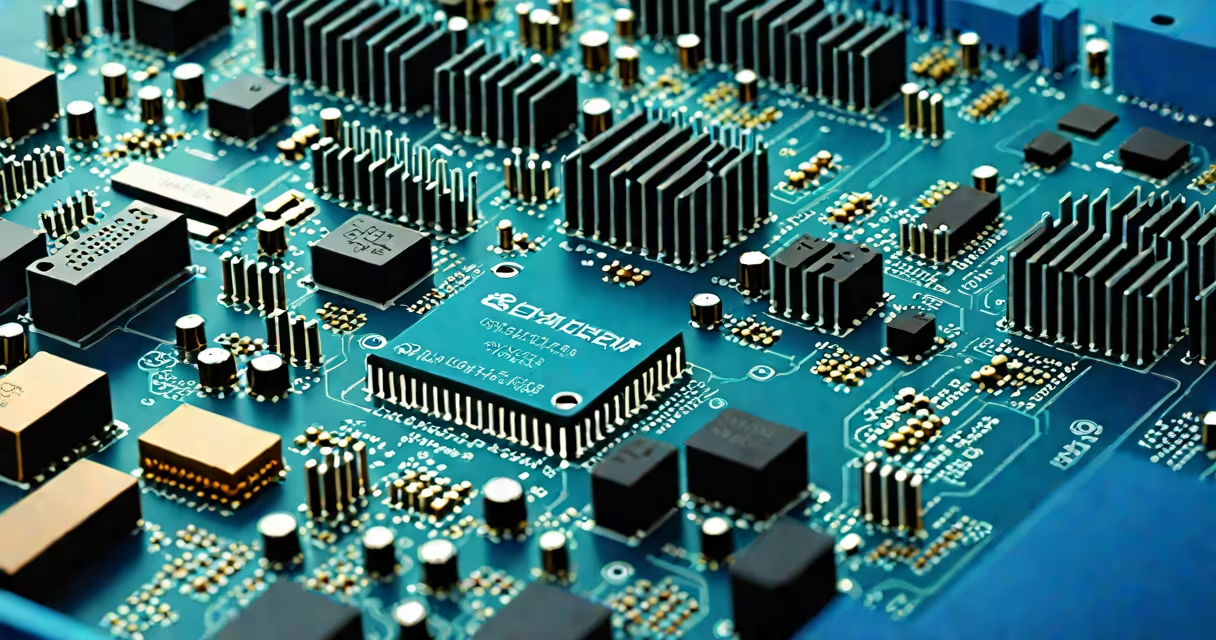
The RAM on a computer is located on the motherboard, typically in one or more long, narrow slots near the central processing unit (CPU). These slots hold removable memory modules, often labeled DIMM or SODIMM depending on size and form factor.
On desktop systems, the RAM sits on the main circuit board beneath the CPU cooler. On laptops, it's usually under a panel on the bottom, accessible via screws. The exact position varies by model, but the physical layout follows standard design patterns across manufacturers.
For most users, identifying RAM requires opening the computer case or removing the laptop's bottom cover. Once inside, look for long rectangular chips with gold contacts along one edge. They're inserted into matching slots, often colored blue or black for easy identification.
RAM connects directly to the motherboard through a set of electrical contacts on the module's underside. When the system powers on, the CPU accesses data stored in RAM at speeds far faster than hard drives or SSDs. This allows quick loading of applications and multitasking.
Each slot supports a specific type of memory-DDR4, DDR5, or older standards. Mismatched RAM types won't fit physically or function correctly. For example, DDR4 modules cannot be inserted into DDR5 slots due to different key notch positions.
Modern motherboards support dual-channel memory architecture. Installing RAM in both of the two primary slots (usually A2 and B2) improves performance by doubling data throughput. Using only one slot limits bandwidth and reduces efficiency.
There are two main types of RAM based on physical size and use:
| Type | Form Factor | Common Use | Slot Color (Typical) |
|---|---|---|---|
| Desktop DIMM | Long, flat module (133mm) | Desktop PCs, servers | Blue or black |
| Laptop SODIMM | Shorter (67mm), smaller footprint | Laptops, compact systems | Black or gray |
Some high-end desktops use dual-rank or ECC (error-correcting code) variants, which require compatible motherboards. Most consumer systems use standard non-ECC modules.
When replacing or upgrading RAM, match the speed (measured in MHz), voltage (typically 1.2V for DDR4), and timing specifications. Mixing incompatible modules causes instability or failure to boot.
People often mistake the GPU's memory (VRAM) for system RAM. VRAM is located on the graphics card and handles video rendering tasks. It's not interchangeable with system RAM and doesn't affect general application performance the way system RAM does.
Another frequent error is assuming that all RAM slots are equal. Motherboards often designate certain slots as primary. For optimal dual-channel performance, install identical RAM sticks in the correct pair of slots-usually the second and fourth from the CPU.
A lesser-known fact: Some motherboards disable unused RAM channels. If you install only one stick in a dual-channel setup, the system may run in single-channel mode unless the BIOS is configured to enable both channels. Always check the manual for channel configuration rules.
I recently upgraded a 2018 Dell OptiPlex 7070 desktop with 8GB of DDR4-2400 RAM. After powering off and unplugging the machine, I opened the side panel. Near the CPU, I saw two blue slots labeled "DIMM A1" and "DIMM B1." The existing RAM was in A1. I removed it by releasing the side clips and inserted a new 16GB stick into A2. The system booted normally and reported 16GB of usable memory in Windows Task Manager.
Before installing, I verified compatibility using the manufacturer's specification sheet. The motherboard supported up to 64GB of DDR4-2400 RAM in dual-channel mode. I chose a 2x8GB kit to ensure balanced performance.
After installation, I ran MemTest86 to confirm stability. The test completed without errors, confirming proper seating and correct timing settings.
Knowing where the RAM is enables upgrades, troubleshooting, and maintenance. If your computer slows down during multitasking or fails to boot after a crash, faulty RAM is a likely cause. Replacing it requires access to the correct location.
For example, a user running Adobe Photoshop on a 4GB RAM laptop experienced constant lag. After checking the system specs, they discovered the RAM was soldered to the motherboard-meaning it couldn't be upgraded. Replacing the entire device became necessary.
On systems with removable RAM, adding more capacity can extend useful life. A 2016 MacBook Pro with 8GB of SODIMM RAM could handle modern web browsing and light photo editing after upgrading to 16GB. The process took less than 10 minutes and cost under $50.
Always consult your device's service manual before opening it. Some laptops have anti-static wrist straps built into the chassis, and improper handling can damage components.
Understanding the physical location of RAM helps you make informed decisions about performance, repairs, and upgrades. You don't need to be a technician-but knowing where to look saves time and prevents mistakes.