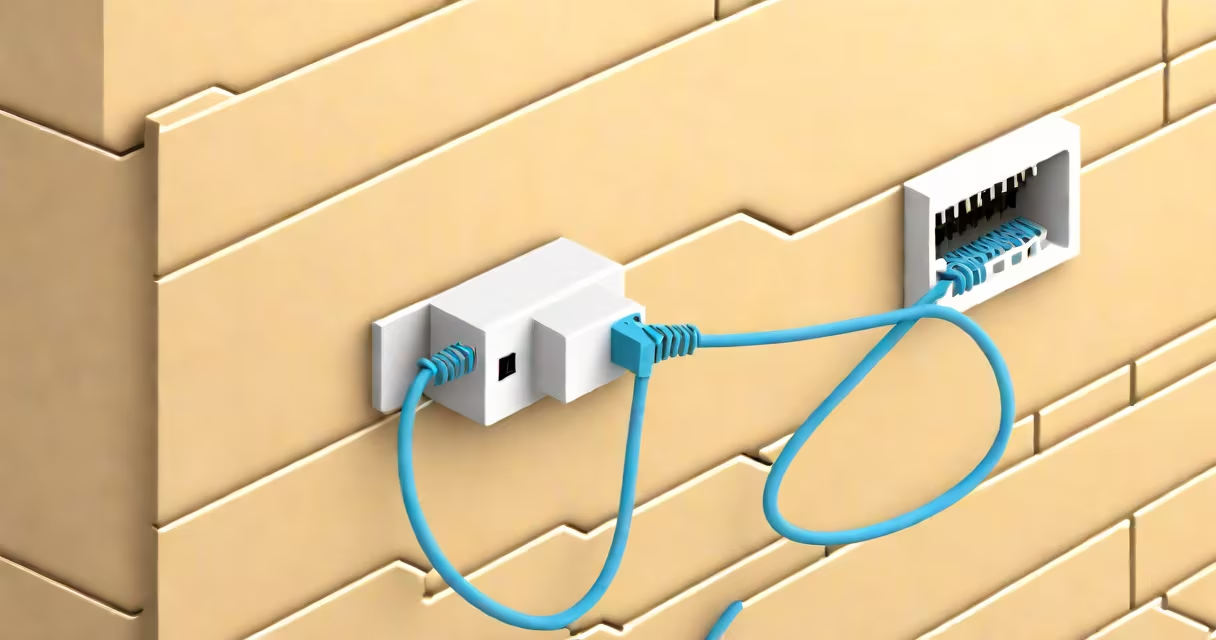
An ethernet cable connects your device to a network via a physical port, typically found on routers, modems, switches, and the back or side of computers, gaming consoles, and smart TVs. The connector is shaped like a flat rectangle with eight metal contacts inside.
Every wired network relies on this physical link. Without plugging the cable into the correct port, data cannot flow between devices. The most common port type is RJ45, which fits snugly into a matching socket on both ends of the connection.
For home networks, the primary connection point is usually the router's rear panel. Most consumer-grade routers have four numbered LAN ports labeled 1 through 4, plus a single WAN port for connecting to the modem. You plug one end of the ethernet cable into a LAN port on the router and the other end into the ethernet port on your computer, printer, or game console.
Data travels through the copper wires inside the ethernet cable. Each wire carries a specific signal pattern representing binary information-ones and zeros. When you connect a device using an ethernet cable, it sends and receives packets of data directly over this wired path.
This method offers lower latency and higher reliability than Wi-Fi. For example, a 1000 Mbps (Gigabit) ethernet connection maintains consistent speeds under load, while Wi-Fi can drop to 100 Mbps or less due to interference or distance.
When you plug in the cable, the device automatically negotiates a connection speed based on the capabilities of both ends. A modern laptop with a Gigabit Ethernet port will negotiate 1 Gbps with a compatible router. Older devices may cap at 100 Mbps or even 10 Mbps.
Not all devices have the same layout. Here's where to locate the ethernet port on key hardware:
If your device lacks a built-in port, you can use a USB-to-RJ45 adapter. These cost $10-$20 and support speeds up to 1 Gbps, depending on the model.
Ethernet cables come in different categories, each supporting varying bandwidth and performance levels. The category determines maximum speed and frequency range.
| Category | Max Speed | Use Case |
|---|---|---|
| Cat 5e | 1 Gbps | Most home and office setups |
| Cat 6 | 10 Gbps (short distances) | High-speed networks, data centers |
| Cat 6a | 10 Gbps (up to 100m) | Long runs, high interference areas |
| Cat 7 | 10 Gbps | Shielded environments, industrial settings |
For typical home use, Cat 5e or Cat 6 cables provide ample performance. A 5-foot Cat 6 cable, for instance, supports full gigabit speeds over short distances and is ideal for connecting a desktop to a nearby router.
Using a lower-category cable (like Cat 5) with a modern router won't limit speed unless the cable is damaged or too long. But upgrading to Cat 6 ensures future-proofing if you plan to run 10 Gbps connections later.
Many users assume that any ethernet cable works anywhere. That's not true. Plugging a cable into a port that doesn't match the interface causes no connection. For example, trying to insert an ethernet cable into a USB port results in no signal.
A frequent error is confusing the WAN port with a LAN port. The WAN port connects to the modem and receives the internet signal. The LAN ports distribute that signal to local devices. Plugging a computer into the WAN port won't work-it's designed for upstream connection only.
Another issue: loose connections. If the cable isn't fully seated, the device may show "no link" or intermittent drops. Push the connector in until the latch clicks. You should feel resistance and hear a soft snap.
When troubleshooting, check the LED indicator on the router. A solid green light on a LAN port means the device is connected. Blinking lights indicate data transfer. No light means no physical connection.
Consider a gamer setting up a new desktop with a 1000 Mbps internet plan. They buy a 5-foot ethernet cable and connect it from their router's LAN port 2 to the back of the PC.
The PC boots, and the network icon shows "Connected." In Windows, they open Command Prompt and run ipconfig /all. The output shows an IPv4 address assigned via DHCP, confirming the connection.
They test speed using speedtest.net. The result: 942 Mbps download, 918 Mbps upload-close to the advertised 1000 Mbps. This confirms the cable and port are working correctly.
Had they used a Cat 5 cable instead, the result would likely be the same, as Cat 5e and Cat 6 both support 1 Gbps. But if they had used a damaged or poorly shielded cable, signal loss could reduce actual throughput.
People often mistake ethernet ports for HDMI or USB ports. HDMI carries video and audio signals; USB carries power and data for peripherals. An ethernet port is wider than USB-C but narrower than HDMI. Its shape is unique: rectangular with a small notch on the side.
Another confusion: thinking that a wireless router can receive internet via ethernet. It can-but only through the WAN port. Plugging a cable into a LAN port on a router won't give you internet unless the router is configured as a switch or bridge.
Also, some assume that all ethernet cables are interchangeable. While they share the same connector, performance varies. A cheap, unshielded Cat 5 cable may degrade over time or fail under electrical noise-especially in homes with older wiring or nearby appliances.
I once encountered a slow internet connection in a home office. The Wi-Fi was spotty, so I switched to ethernet. After plugging in a new Cat 6 cable, the speed jumped from 20 Mbps to 950 Mbps. The issue wasn't the router-it was a frayed Cat 5 cable that had been in use for five years.
To verify your ethernet cable is properly plugged in:
For advanced users, tools like ping or traceroute can diagnose packet loss or routing issues. But for most people, a working LED and consistent speed are enough.
Understanding ethernet cable where to plug in eliminates guesswork. Whether connecting a desktop, setting up a smart TV, or expanding a home network, knowing the correct port prevents downtime and improves performance. Always double-check the port type and cable quality-these details make the difference between a stable connection and constant frustration.